
Quick Start: Your First AI Workflow#
In this notebook, you will build a working AI workflow from scratch.
No importing files. No theory first. Just building.
What you will create:
┌─────────────────┐     ┌─────────────────┐     ┌─────────────────┐
│  Manual Trigger │────▶│   Edit Fields   │────▶│ Basic LLM Chain │
└─────────────────┘     └─────────────────┘     └─────────────────┘
                                                    ┊ (sub-node)
                                                    ┊
                                              ┌───────────┐
                                              │Chat Model │
                                              └───────────┘
This simple workflow will:
Start when you click a button
Create some input data (a topic)
Ask an AI to write a haiku about that topic
Step 1: Create a New Workflow#
Open n8n in your browser: http://localhost:5678
Click Workflows in the left sidebar
Click Add Workflow (or the + button)
You now see an empty canvas. This is where you build.
Tip: Click the workflow name at the top (“My workflow”) and rename it to “My First AI Workflow”.
Step 2: Add a Trigger#
Every workflow needs a starting point. This is called a Trigger.
Click the + button on the canvas (or press
Tab)Search for “Manual Trigger”
Click it to add it to your canvas
You should see a node labeled “When clicking ‘Execute workflow’” (or similar).
What is this? The Manual Trigger starts your workflow when you click “Execute Workflow” in the editor. Perfect for learning.
Step 3: Add Input Data#
The trigger starts the workflow, but it doesn’t create any data. Let’s add a node that creates our input.
Click the + button on the right side of the Manual Trigger node
Search for “Edit Fields” (also called “Set”)
Click it to add it
Now configure it:
In the panel on the right, click Add Field → String
Set Name to:
topicSet Value to:
artificial intelligence
Your configuration should look like:
Name |
Value |
|---|---|
topic |
artificial intelligence |
What is this? The Edit Fields node creates data. We’re creating a field called topic with a value. This data will flow to the next node.
Step 4: Run It and See the Output#
Let’s run what we have so far.
Click Execute Workflow in the top toolbar (or press
Ctrl/Cmd + Enter)
You should see green checkmarks on both nodes. Now click the Edit Fields node.
Look at the right panel. This is the Output Panel — your best friend for debugging.
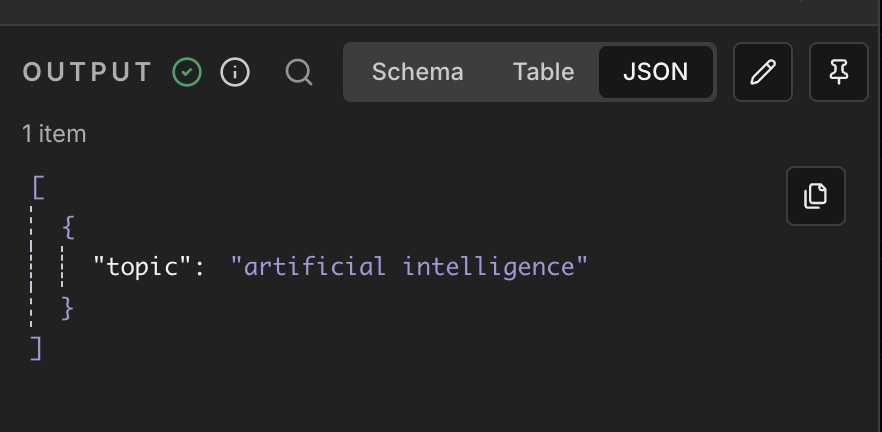
You should see:
{
  "topic": "artificial intelligence"
}
The Output Panel#
Every time you run a node, you can click it to see:
Input — what the node received
Output — what the node produced
Try clicking the Table and JSON buttons to switch views. JSON shows the exact field names — you’ll need this later.
Step 5: Add the AI Node#
Now let’s add the node that calls the AI.
Click the + button on the right side of the Edit Fields node
Search for “Basic LLM Chain”
Click it to add it
You’ll see a new node appear, but it has a warning. That’s because it needs two things:
A Chat Model (the AI brain)
A prompt (what you want the AI to do)
Step 5b: Set Up Your API Credentials#
Before connecting the AI model, you need an API key. We recommend OpenRouter — it offers free models with no strict rate limits.
Option A: OpenRouter (Recommended)#
Go to openrouter.ai
Sign up (no credit card required for free models)
Go to Keys → Create Key
Copy the API key (starts with
sk-or-...)
Add to n8n:
In n8n, click Settings (gear icon, bottom-left)
Select Credentials → Add Credential
Search for “OpenRouter”
Paste your API key → Save
Option B: Google AI Studio (Free but limited)#
Go to aistudio.google.com
Sign in with your Google account
Click Get API Key → Create API Key
Copy the API key (starts with
AIza...)
Add to n8n:
In n8n, click Settings → Credentials → Add Credential
Search for “Google Gemini”
Paste your API key → Save
Note: Google’s free tier has strict daily limits (~20-50 requests/day). If you hit rate limit errors, switch to OpenRouter.
Once saved, your credential is available across all workflows.
Step 6: Connect a Chat Model#
The Basic LLM Chain needs an AI model to work. Let’s connect one.
With the Basic LLM Chain selected, look for the “Chat Model” section at the bottom
Click + Chat Model
Choose your provider (OpenRouter recommended)
Click the model node that appeared
Select the credential you created in the previous step
Choose a model:
OpenRouter (recommended):
Type |
Model ID |
|---|---|
Free |
|
Cheap |
|
Powerful |
|
Google Gemini:
Type |
Model ID |
|---|---|
Free |
|
You should now see a dotted line connecting the Chat Model to the Basic LLM Chain. This means the AI brain is connected.
Step 7: Write Your Prompt#
To tell the AI what to do:
Click the Basic LLM Chain node
Find the Prompt field
In the text area, type:
Write a haiku about artificial intelligence.
This basic approach works. To make it dynamic, use the topic field from the Edit Fields node instead of hardcoding text.
Introducing Expressions#
Expressions let you use data from previous nodes. The syntax is:
{{ $json.fieldName }}
Change your prompt to:
Write a haiku about {{ $json.topic }}.
Important: Make sure the field is in Expression mode. Click the toggle to switch from “Fixed” to “Expression”:

What this does: When the workflow runs, {{ $json.topic }} is replaced with artificial intelligence (the value from the Edit Fields node).
Step 8: Run Your Complete Workflow#
Time for the big moment!
Click Execute Workflow
Wait a few seconds for the AI to respond
Click the Basic LLM Chain node
In the Output panel, you should see something like:
{
  "text": "Silicon minds wake\nLearning patterns in the void\nFuture dreams take shape"
}
You did it! You just built an AI workflow from scratch.
Notice the output field is called text. This is important — when you want to use this result in another node, you would write {{ $json.text }}.
Step 9: Pin Your Data#
Every time you run the workflow, the AI generates a new haiku. But what if you want to keep working on the workflow without calling the AI again?
This is where Pinning helps.
Click the Basic LLM Chain node
In the Output panel, click the pin icon (📌)
The node now shows a pin indicator
What this does: Next time you run the workflow, this node will use the pinned data instead of calling the AI again. This:
Saves money (no API call)
Saves time (instant result)
Keeps your data consistent while you build downstream nodes
To unpin: Click the pin icon again.
Pro tip: Pin data after any expensive or slow operation (like AI calls) while you’re building.
Step 10: Experiment!#
Before moving on, try these experiments:
Experiment 1: Change the topic#
Click the Edit Fields node
Change
artificial intelligencetocoffeeUnpin the Basic LLM Chain (if pinned)
Run the workflow again
Experiment 2: Add more fields#
In Edit Fields, add another field:
style=funnyUpdate your prompt to:
Write a {{ $json.style }} haiku about {{ $json.topic }}.Run and see the result
Experiment 3: Add a System Message#
In the Basic LLM Chain, find System Message
Add:
You are a poet who writes in the style of Shakespeare.Run and compare the result
The more you experiment, the faster you’ll learn!
What You Learned#
In just a few minutes, you:
Concept |
What you did |
|---|---|
Workflow |
Created a sequence of connected nodes |
Trigger |
Added a Manual Trigger to start the workflow |
Edit Fields |
Created input data with a |
Basic LLM Chain |
Called an AI model with a prompt |
Chat Model |
Connected an AI provider (OpenRouter/OpenAI/Google) |
Expression |
Used |
Output Panel |
Inspected data at each step |
Pinning |
Saved output to avoid re-running expensive operations |
These are the core skills you’ll use in every workflow.
Your Workflow Structure#
┌───────────────────────────────────┐     ┌─────────────────────────────┐     ┌─────────────────────────────┐
│  When clicking 'Execute workflow' │────▶│        Edit Fields          │────▶│      Basic LLM Chain        │
│          (Manual Trigger)         │     │                             │     │                             │
│                                   │     │  topic: "artificial         │     │  Prompt:                    │
│  Output: { }                      │     │          intelligence"      │     │  "Write a haiku about       │
│                                   │     │  style: "funny"             │     │   {{ $json.topic }}"        │
└───────────────────────────────────┘     └─────────────────────────────┘     └─────────────────────────────┘
                                                                                            ┊
                                                                                            ┊ (dotted line)
                                                                                            ┊
                                                                                    ┌───────────────┐
                                                                                    │  Chat Model   │
                                                                                    │  (OpenRouter/ │
                                                                                    │   OpenAI/     │
                                                                                    │   Gemini)     │
                                                                                    └───────────────┘
Data flow summary:
Step |
Node |
Output |
|---|---|---|
1 |
Manual Trigger |
|
2 |
Edit Fields |
|
3 |
Basic LLM Chain |
|
Common Issues#
Problem |
Solution |
|---|---|
“No credentials” error |
Go to Settings → Credentials and add your API key |
Expression shows literally as |
Switch the field from “Fixed” to “Expression” mode |
Output is empty |
Check the Output panel on the previous node — is the field name correct? |
AI response is slow |
This is normal. Pin the data while you work on other parts |
Chat Model not connected |
Look for the dotted line. If missing, click + Chat Model again |
Recap#
In this notebook, you built your first AI workflow from scratch:
Created a workflow with Manual Trigger, Edit Fields, and Basic LLM Chain
Connected an AI provider (OpenRouter, OpenAI, or Google)
Used expressions (
{{ $json.topic }}) to pass data between nodesLearned to use the Output Panel and pinning for efficient development
Next: Proceed to 08d - Workflow Patterns to learn Core Concepts and three powerful patterns: Prompt Chaining, Routing, and Parallelization.