
04 - Introduction to OpenCV#
OpenCV (Open Source Computer Vision Library) is an open-source computer vision and machine learning software library. OpenCV was built to provide a common infrastructure for computer vision applications and to accelerate the use of machine perception in commercial products.
Key features:
Supports multiple programming languages (C++, Python, Java)
Cross-platform compatibility (Windows, Linux, Mac OS, iOS, Android)
Handles images as NumPy arrays, making it easy to integrate with scientific computing libraries
Widely used in industry for real-time computer vision applications
We use OpenCV for basic image operations such as reading and displaying images, color conversions, geometric transformations, and thresholding techniques.
Table of Contents#
Installation and Setup
Reading, Writing, and Displaying Images
Basic Image Manipulation
Image Thresholding
Exercise: Bill Image Processing
Optional: Histogram Equalization and CLAHE
Installation and Setup#
First, let’s install and import the necessary libraries.
# OpenCV Installation (run only if needed)
#
# In Google Colab: OpenCV is usually pre-installed
# Locally: pip install opencv-python
#
# Uncomment and run the line below if you get "ModuleNotFoundError: No module named 'cv2'"
# !pip install opencv-python

# Optional: install ipywidgets for interactive demos
# !pip install ipywidgets
import cv2
import numpy as np
import matplotlib.pyplot as plt
import requests

# Configure matplotlib for inline display
%matplotlib inline

# Base URL for images hosted on GitHub
BASE_URL = "https://raw.githubusercontent.com/ezponda/ai-application-course-materials/main/images/"

def load_image_from_url(filename, flags=cv2.IMREAD_COLOR):
    """Load an image from GitHub repository using OpenCV."""
    url = BASE_URL + filename
    response = requests.get(url)
    image_array = np.asarray(bytearray(response.content), dtype=np.uint8)
    return cv2.imdecode(image_array, flags)
Reading, Writing, and Displaying Images#
Reading Images#
OpenCV loads images using cv2.imread(), which returns the image as a NumPy array. If the image cannot be read (missing file, improper permissions, or unsupported format), this function returns an empty matrix.
Syntax: cv2.imread(path, flag)
Common flags:
cv2.IMREAD_COLORor1: Loads a color image, ignoring any transparency (default)cv2.IMREAD_GRAYSCALEor0: Loads image in grayscale modecv2.IMREAD_UNCHANGEDor-1: Loads image as-is, including alpha channel
BGR vs RGB#
Important: OpenCV uses BGR (Blue, Green, Red) color order by default, not RGB (Red, Green, Blue).
When displaying OpenCV images with matplotlib (which expects RGB), you need to convert the color order:
image_rgb = cv2.cvtColor(image_bgr, cv2.COLOR_BGR2RGB)
# Load an image from GitHub repository
image_bgr = load_image_from_url("opencv_sample.png", cv2.IMREAD_COLOR)

# Read the same image in grayscale mode
image_gray = load_image_from_url("opencv_sample.png", cv2.IMREAD_GRAYSCALE)

# Convert BGR to RGB for proper display in matplotlib
image_rgb = cv2.cvtColor(image_bgr, cv2.COLOR_BGR2RGB)

print(f"Color image shape: {image_rgb.shape} (Height, Width, Channels)")
print(f"Grayscale image shape: {image_gray.shape} (Height, Width)")
Color image shape: (512, 512, 3) (Height, Width, Channels)
Grayscale image shape: (512, 512) (Height, Width)
fig, axes = plt.subplots(1, 3, figsize=(15, 5))

# Display BGR image (incorrect colors)
axes[0].imshow(image_bgr)
axes[0].set_title("BGR Image (Incorrect Colors)")
axes[0].axis('off')

# Display grayscale image
axes[1].imshow(image_gray, cmap='gray')
axes[1].set_title("Grayscale Image")
axes[1].axis('off')

# Display RGB image (correct colors)
axes[2].imshow(image_rgb)
axes[2].set_title("RGB Image (Correct Colors)")
axes[2].axis('off')

plt.tight_layout()
plt.show()
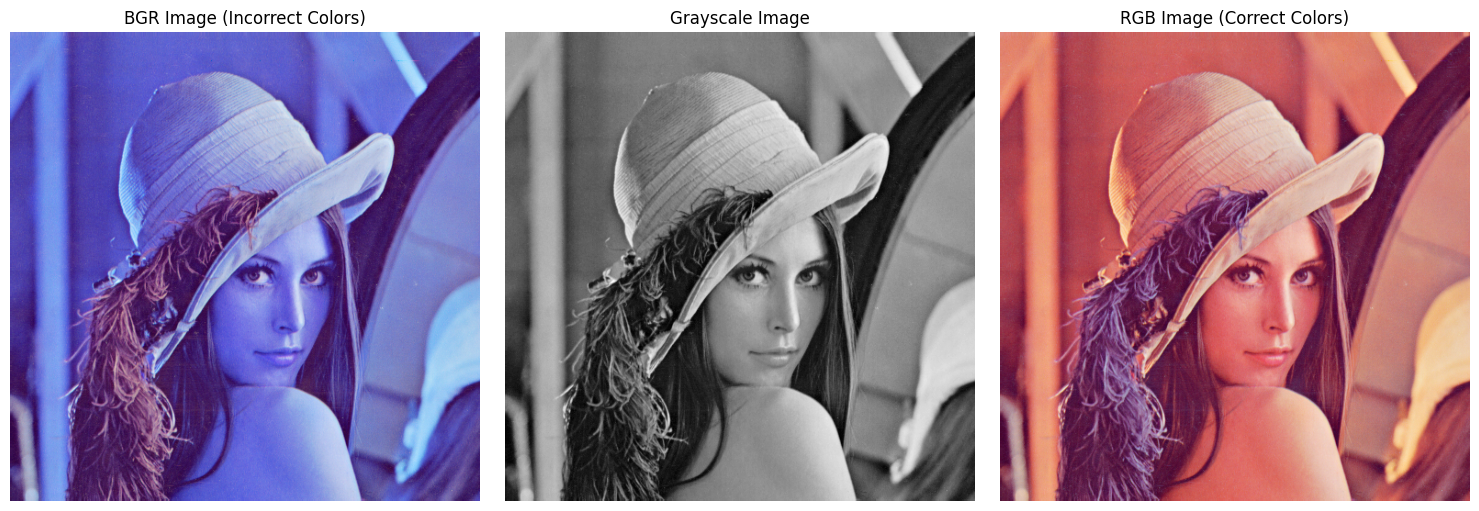
What we observe:
The BGR image displays incorrect colors (blue and red are swapped)
The grayscale image has only one channel, showing luminance information
The RGB image displays correct colors after conversion
Writing Images#
Save images using cv2.imwrite(). The image format is determined by the filename extension.
Syntax: cv2.imwrite(filename, img)
Returns: True if the image was saved successfully, False otherwise.
# Example: Save the grayscale image
# success = cv2.imwrite("output_gray.jpg", image_gray)
# print(f"Image saved: {success}")
Basic Image Manipulation#
Resizing Images#
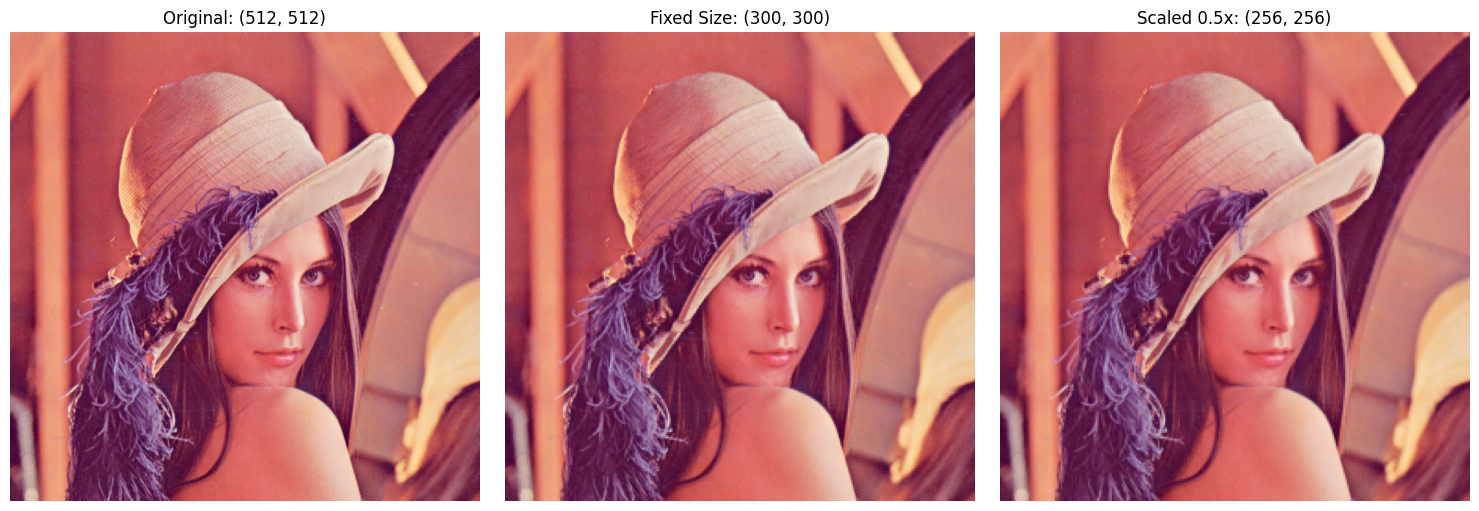
Resizing changes the dimensions of an image. Use cv2.resize() to specify new dimensions or scale factors.
Syntax: cv2.resize(src, dsize, fx, fy, interpolation)
Parameters:
src: Input imagedsize: Desired output size as(width, height)fx,fy: Scale factors (used whendsizeis(0, 0))interpolation: Resampling method
Common interpolation methods:
cv2.INTER_LINEAR: Good default for most casescv2.INTER_NEAREST: Fastest but may produce jagged edgescv2.INTER_AREA: Recommended for downsizingcv2.INTER_CUBIC: Slower but better for upsizingcv2.INTER_LANCZOS4: Highest quality
Practical uses:
Preparing images for neural networks (fixed input size)
Creating thumbnails
Reducing computational requirements
# Resize to specific dimensions
resized_fixed = cv2.resize(image_rgb, (300, 300), interpolation=cv2.INTER_LINEAR)

# Resize using scale factors
resized_scaled = cv2.resize(image_rgb, (0, 0), fx=0.5, fy=0.5, interpolation=cv2.INTER_LINEAR)

fig, axes = plt.subplots(1, 3, figsize=(15, 5))

axes[0].imshow(image_rgb)
axes[0].set_title(f"Original: {image_rgb.shape[:2]}")
axes[0].axis('off')

axes[1].imshow(resized_fixed)
axes[1].set_title(f"Fixed Size: {resized_fixed.shape[:2]}")
axes[1].axis('off')

axes[2].imshow(resized_scaled)
axes[2].set_title(f"Scaled 0.5x: {resized_scaled.shape[:2]}")
axes[2].axis('off')

plt.tight_layout()
plt.show()
Rotating Images#
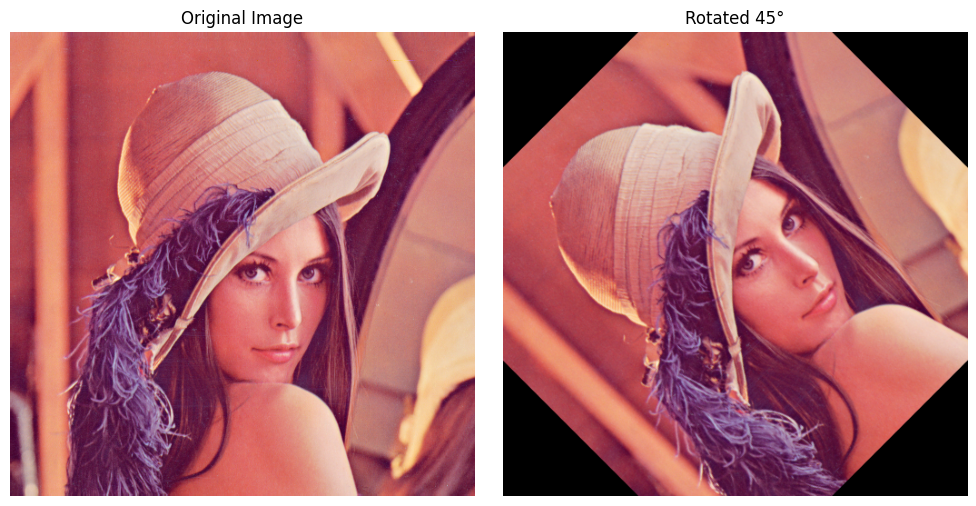
Rotation is performed using a transformation matrix. Use cv2.getRotationMatrix2D() to create the matrix and cv2.warpAffine() to apply it.
cv2.getRotationMatrix2D(center, angle, scale):
center: Center of rotation (x, y)angle: Rotation angle in degrees (positive = counter-clockwise)scale: Isotropic scale factor (1.0 = no scaling)
cv2.warpAffine(src, M, dsize):
src: Input imageM: 2×3 transformation matrixdsize: Output image size as(width, height)
Practical uses:
Correcting tilted images
Data augmentation for machine learning
# Get image center
center = (image_rgb.shape[1] // 2, image_rgb.shape[0] // 2)

# Create rotation matrix (45 degrees counter-clockwise)
rotation_matrix = cv2.getRotationMatrix2D(center, 45, 1.0)

# Apply rotation
rotated_image = cv2.warpAffine(image_rgb, rotation_matrix, (image_rgb.shape[1], image_rgb.shape[0]))

fig, axes = plt.subplots(1, 2, figsize=(10, 5))

axes[0].imshow(image_rgb)
axes[0].set_title("Original Image")
axes[0].axis('off')

axes[1].imshow(rotated_image)
axes[1].set_title("Rotated 45°")
axes[1].axis('off')

plt.tight_layout()
plt.show()
Cropping Images#
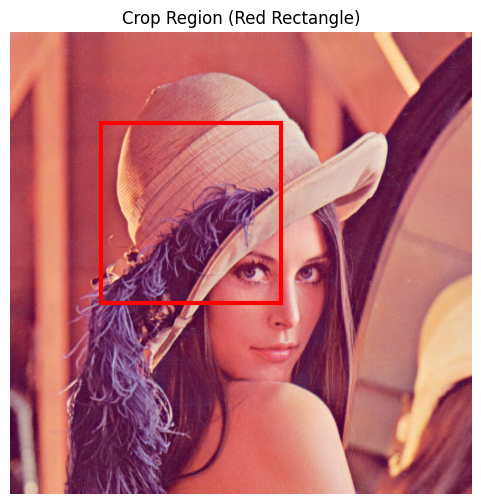
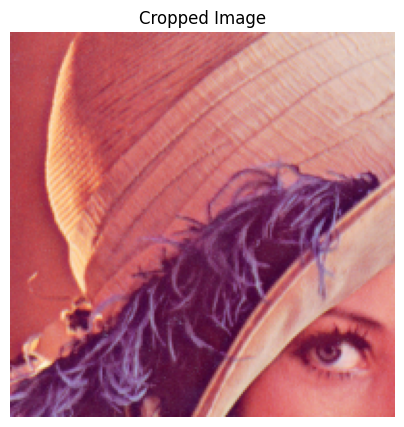
Cropping extracts a rectangular region from an image using NumPy array slicing.
Syntax: cropped = image[y1:y2, x1:x2]
Note that the first index is the row (y-coordinate) and the second is the column (x-coordinate).
Practical uses:
Extracting regions of interest
Removing unwanted borders
Focusing on specific image areas
import matplotlib.patches as patches

# Define crop region: (x, y, width, height)
crop_x, crop_y, crop_w, crop_h = 100, 100, 200, 200

# Visualize the crop region
fig, ax = plt.subplots(figsize=(6, 6))
ax.imshow(image_rgb)

# Draw rectangle showing crop region
rect = patches.Rectangle(
    (crop_x, crop_y), crop_w, crop_h,
    linewidth=3, edgecolor='red', facecolor='none'
)
ax.add_patch(rect)
ax.set_title('Crop Region (Red Rectangle)')
ax.axis('off')
plt.show()

# Perform the crop (note: array indexing is [y:y+h, x:x+w])
cropped_image = image_rgb[crop_y:crop_y + crop_h, crop_x:crop_x + crop_w]

# Display cropped result
plt.figure(figsize=(5, 5))
plt.imshow(cropped_image)
plt.title('Cropped Image')
plt.axis('off')
plt.show()

print(f"Original size: {image_rgb.shape[:2]}")
print(f"Cropped size: {cropped_image.shape[:2]}")
Original size: (512, 512)
Cropped size: (200, 200)
Image Thresholding#
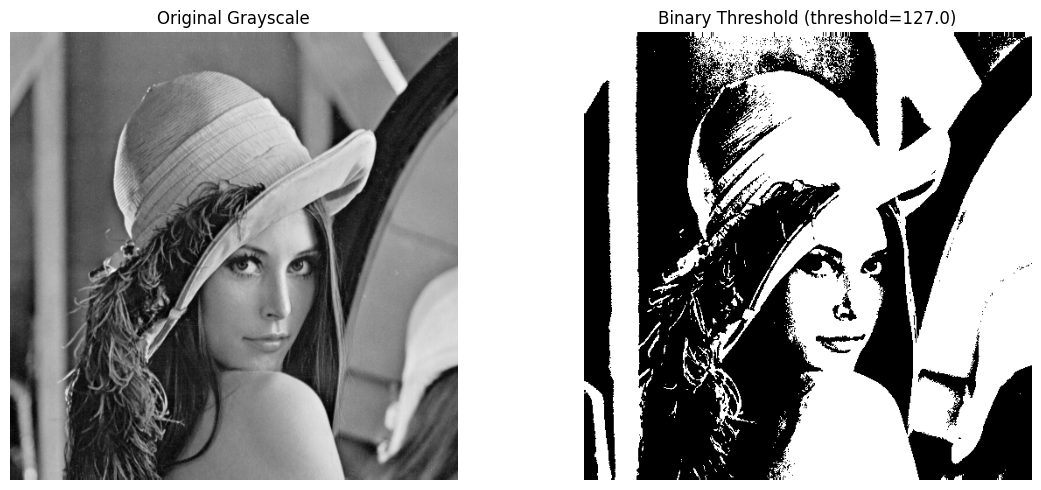
Image thresholding is a technique for partitioning an image into foreground and background by classifying pixels based on their intensity values.
Basic (Global) Thresholding#
Basic thresholding applies a fixed threshold to all pixels:
Syntax: retval, dst = cv2.threshold(src, thresh, maxval, type)
Parameters:
src: Grayscale input imagethresh: Threshold valuemaxval: Maximum value for binary thresholdingtype: Thresholding type (e.g.,cv2.THRESH_BINARY)
Practical uses:
Separating objects from background
Document image processing
Preparing images for further analysis
# Convert to grayscale for thresholding
gray = cv2.cvtColor(image_rgb, cv2.COLOR_RGB2GRAY)

# Apply basic thresholding
ret, thresh_basic = cv2.threshold(gray, 127, 255, cv2.THRESH_BINARY)

fig, axes = plt.subplots(1, 2, figsize=(12, 5))

axes[0].imshow(gray, cmap='gray')
axes[0].set_title('Original Grayscale')
axes[0].axis('off')

axes[1].imshow(thresh_basic, cmap='gray')
axes[1].set_title(f'Binary Threshold (threshold={ret})')
axes[1].axis('off')

plt.tight_layout()
plt.show()
Adaptive Thresholding#
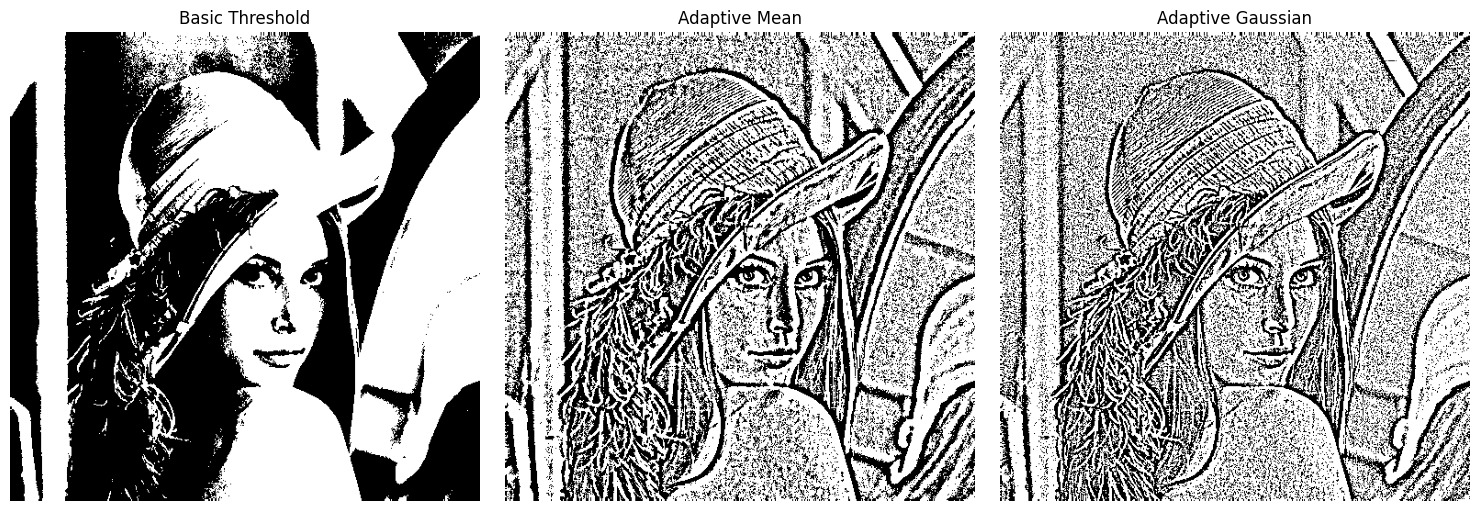
Adaptive thresholding computes the threshold locally for different regions of the image. This is useful when lighting conditions vary across the image.
Syntax: dst = cv2.adaptiveThreshold(src, maxValue, adaptiveMethod, thresholdType, blockSize, C)
Parameters:
maxValue: Value assigned to pixels exceeding the thresholdadaptiveMethod: Method for calculating the thresholdcv2.ADAPTIVE_THRESH_MEAN_C: Threshold = mean of neighborhood - Ccv2.ADAPTIVE_THRESH_GAUSSIAN_C: Threshold = weighted sum of neighborhood - C
thresholdType:cv2.THRESH_BINARYorcv2.THRESH_BINARY_INVblockSize: Size of pixel neighborhood (must be odd, e.g., 11, 15, 21)C: Constant subtracted from the calculated mean
Key differences:
MEAN_C: Simple average of neighborhood pixels
GAUSSIAN_C: Weighted average (center pixels weighted more), better for varying illumination
Practical uses:
Document scanning with uneven lighting
Processing images with shadows
Text extraction from images
# Apply adaptive thresholding with MEAN method
adaptive_mean = cv2.adaptiveThreshold(
    gray, 255, cv2.ADAPTIVE_THRESH_MEAN_C, cv2.THRESH_BINARY, 11, 2
)

# Apply adaptive thresholding with GAUSSIAN method
adaptive_gaussian = cv2.adaptiveThreshold(
    gray, 255, cv2.ADAPTIVE_THRESH_GAUSSIAN_C, cv2.THRESH_BINARY, 11, 2
)

fig, axes = plt.subplots(1, 3, figsize=(15, 5))

axes[0].imshow(thresh_basic, cmap='gray')
axes[0].set_title('Basic Threshold')
axes[0].axis('off')

axes[1].imshow(adaptive_mean, cmap='gray')
axes[1].set_title('Adaptive Mean')
axes[1].axis('off')

axes[2].imshow(adaptive_gaussian, cmap='gray')
axes[2].set_title('Adaptive Gaussian')
axes[2].axis('off')

plt.tight_layout()
plt.show()
Optional: Interactive Thresholding#
This interactive widget allows you to experiment with different thresholding parameters.
Note: Requires ipywidgets to be installed and a Jupyter environment that supports widgets.
from ipywidgets import interact, widgets

def interactive_thresholding(thresh_type, threshold, block_size, C):
    """Interactive thresholding demonstration."""
    if thresh_type == 'Binary':
        _, th = cv2.threshold(gray, threshold, 255, cv2.THRESH_BINARY)
    elif thresh_type == 'Adaptive Mean':
        th = cv2.adaptiveThreshold(gray, 255, cv2.ADAPTIVE_THRESH_MEAN_C, cv2.THRESH_BINARY, block_size, C)
    elif thresh_type == 'Adaptive Gaussian':
        th = cv2.adaptiveThreshold(gray, 255, cv2.ADAPTIVE_THRESH_GAUSSIAN_C, cv2.THRESH_BINARY, block_size, C)

    plt.imshow(th, cmap='gray')
    plt.axis('off')
    plt.show()

interact(
    interactive_thresholding,
    thresh_type=widgets.Dropdown(
        options=['Binary', 'Adaptive Mean', 'Adaptive Gaussian'],
        value='Binary',
        description='Method:'
    ),
    threshold=widgets.IntSlider(min=0, max=255, step=1, value=127, description='Threshold:'),
    block_size=widgets.IntSlider(min=3, max=21, step=2, value=11, description='Block Size:'),
    C=widgets.IntSlider(min=0, max=10, value=2, description='C Value:')
);
Exercise: Bill Image Processing#
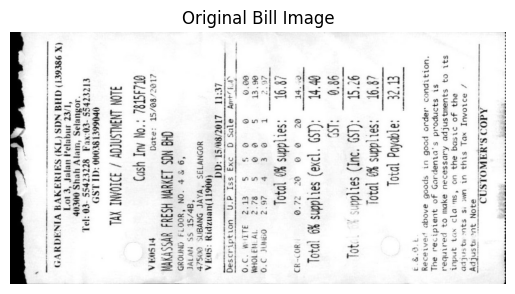
Task: Rotate the bill image to vertical orientation and apply thresholding.
Key hints:
Rotation:
cv2.getRotationMatrix2D(center, angle, 1.0)+cv2.warpAffine()Thresholding: Try
cv2.adaptiveThreshold(..., blockSize=11, C=2)
# Step 1: Read the image in grayscale mode
bill_gray = load_image_from_url("bill_1.jpg", cv2.IMREAD_GRAYSCALE)

plt.imshow(bill_gray, cmap='gray')
plt.axis('off')
plt.title('Original Bill Image')
plt.show()
# Step 2: Rotate the image to vertical orientation
# Hint: Create a rotation matrix with cv2.getRotationMatrix2D
# Then apply it with cv2.warpAffine
# Example angle: 90 or -90 degrees to make it vertical

# TODO: Fill in the rotation angle (e.g., 90, -90, or adjust as needed)
# rotation_matrix = cv2.getRotationMatrix2D(
#     (bill_gray.shape[1]/2, bill_gray.shape[0]/2), ANGLE_HERE, 1
# )

# TODO: Fill in the image and rotation matrix
# rotated_bill = cv2.warpAffine(IMAGE_HERE, MATRIX_HERE, (bill_gray.shape[1], bill_gray.shape[0]))

# Uncomment the lines below after completing the rotation
# plt.imshow(rotated_bill, cmap='gray')
# plt.axis('off')
# plt.title('Rotated Bill Image')
# plt.show()
# Step 3: Apply thresholding to improve image quality
# Try both basic thresholding and adaptive thresholding
# Compare the results to see which works better

# Option 1: Basic thresholding
# TODO: Fill in the threshold value (try values like 127, 150, etc.)
# ret, bill_thresh = cv2.threshold(rotated_bill, THRESHOLD_VALUE, 255, cv2.THRESH_BINARY)

# Option 2: Adaptive thresholding (often better for documents)
# TODO: Fill in the parameters (blockSize must be odd, e.g., 11, 15, 21)
# bill_thresh = cv2.adaptiveThreshold(rotated_bill, 255, cv2.ADAPTIVE_THRESH_GAUSSIAN_C, cv2.THRESH_BINARY, BLOCKSIZE, C_VALUE)

# Uncomment the lines below after completing the thresholding
# plt.imshow(bill_thresh, cmap='gray')
# plt.axis('off')
# plt.title('Thresholded Bill Image')
# plt.show()
Optional: Histogram Equalization and CLAHE#
This section covers advanced techniques for improving image contrast. These methods are particularly useful for images with poor lighting conditions.
What is Histogram Equalization?#
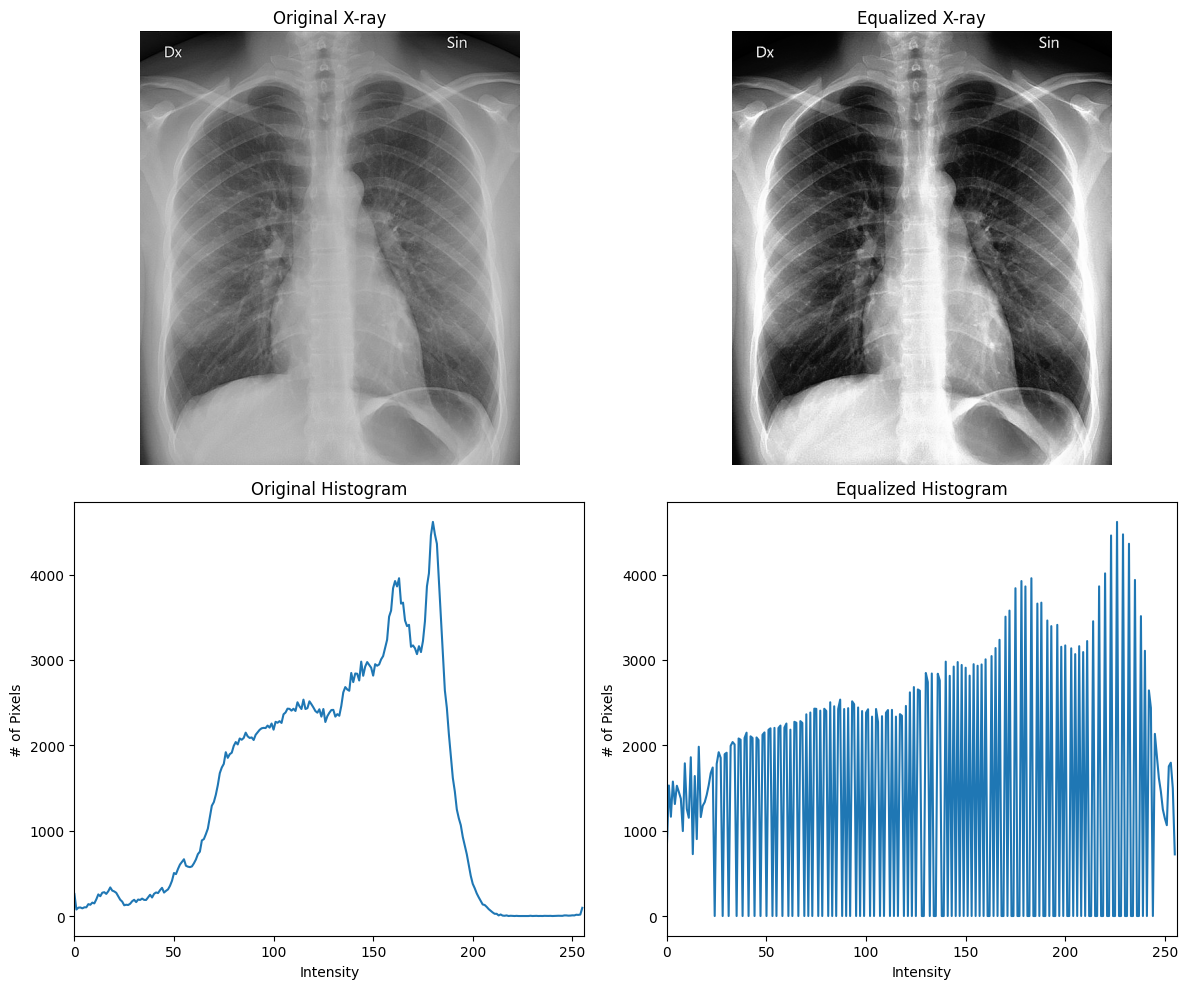
Histogram equalization improves image contrast by spreading out the intensity distribution. It makes dark pixels darker and bright pixels brighter, increasing the global contrast.
When to use it:
Medical imaging (X-rays, CT scans)
Low-contrast photographs
Images with uniform lighting
# Load a low-contrast image (X-ray)
xray_image = load_image_from_url("xray_sample.jpg", cv2.IMREAD_GRAYSCALE)

# Apply histogram equalization
equalized = cv2.equalizeHist(xray_image)

# Calculate histograms
hist_original = cv2.calcHist([xray_image], [0], None, [256], [0, 256])
hist_equalized = cv2.calcHist([equalized], [0], None, [256], [0, 256])

# Display results
fig = plt.figure(figsize=(12, 10))

# Original image
plt.subplot(2, 2, 1)
plt.imshow(xray_image, cmap='gray')
plt.title("Original X-ray")
plt.axis('off')

# Original histogram
plt.subplot(2, 2, 3)
plt.plot(hist_original)
plt.title("Original Histogram")
plt.xlabel("Intensity")
plt.ylabel("# of Pixels")
plt.xlim([0, 256])

# Equalized image
plt.subplot(2, 2, 2)
plt.imshow(equalized, cmap='gray')
plt.title("Equalized X-ray")
plt.axis('off')

# Equalized histogram
plt.subplot(2, 2, 4)
plt.plot(hist_equalized)
plt.title("Equalized Histogram")
plt.xlabel("Intensity")
plt.ylabel("# of Pixels")
plt.xlim([0, 256])

plt.tight_layout()
plt.show()
CLAHE (Contrast Limited Adaptive Histogram Equalization)#
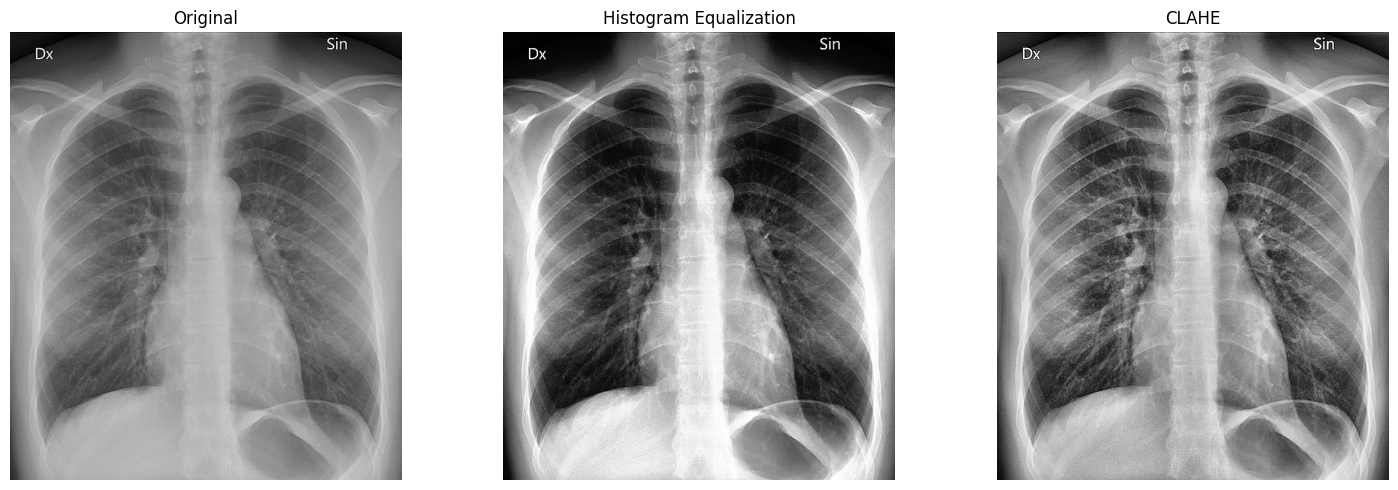
CLAHE improves upon standard histogram equalization by:
Applying equalization locally to small regions (tiles)
Limiting contrast amplification to prevent noise enhancement
Key parameters:
clipLimit: Contrast limiting threshold (higher = more contrast)tileGridSize: Size of local regions (e.g., 8×8)
When to use CLAHE:
Images with varying lighting conditions
When standard histogram equalization over-amplifies noise
Medical and scientific imaging
# Create CLAHE object
clahe = cv2.createCLAHE(clipLimit=2.0, tileGridSize=(8, 8))

# Apply CLAHE
clahe_image = clahe.apply(xray_image)

# Display comparison
fig, axes = plt.subplots(1, 3, figsize=(15, 5))

axes[0].imshow(xray_image, cmap='gray')
axes[0].set_title('Original')
axes[0].axis('off')

axes[1].imshow(equalized, cmap='gray')
axes[1].set_title('Histogram Equalization')
axes[1].axis('off')

axes[2].imshow(clahe_image, cmap='gray')
axes[2].set_title('CLAHE')
axes[2].axis('off')

plt.tight_layout()
plt.show()
Optional: Interactive CLAHE#
Experiment with CLAHE parameters interactively.
Note: Requires ipywidgets to be installed and a Jupyter environment that supports widgets.
def interactive_clahe(clip_limit, tile_grid_size):
    """Interactive CLAHE demonstration."""
    clahe = cv2.createCLAHE(clipLimit=clip_limit, tileGridSize=(tile_grid_size, tile_grid_size))
    clahe_image = clahe.apply(xray_image)

    plt.imshow(clahe_image, cmap='gray')
    plt.axis('off')
    plt.title(f'CLAHE (clipLimit={clip_limit}, tileSize={tile_grid_size})')
    plt.show()

interact(
    interactive_clahe,
    clip_limit=widgets.FloatSlider(min=1, max=5, step=0.1, value=2, description='Clip Limit:'),
    tile_grid_size=widgets.IntSlider(min=1, max=16, step=1, value=8, description='Tile Size:')
);
Recap#
This notebook covered fundamental OpenCV operations:
Reading and Displaying Images:
OpenCV uses BGR color order (convert to RGB for matplotlib)
Images are represented as NumPy arrays
Reading with different flags: color, grayscale, unchanged
Basic Transformations:
Resizing with different interpolation methods
Rotating using transformation matrices
Cropping using NumPy array slicing
Thresholding:
Basic (global) thresholding for uniform images
Adaptive thresholding for varying lighting conditions
Optional Advanced Techniques:
Histogram equalization for global contrast enhancement
CLAHE for local contrast enhancement with noise control
These operations form the foundation for more advanced computer vision tasks, including object detection, tracking, and deep learning-based applications.