
11 - Object Tracking with Ultralytics YOLO#
In this notebook we extend object detection to object tracking using Ultralytics YOLO11. We will see how to follow objects across frames, understand track IDs, and implement simple object counting in a traffic video.
Note: We use the Ultralytics YOLO family (v3–v11 and newer). In this notebook we demonstrate with YOLO11 models.
Table of Contents#
Setup and Imports
Object Tracking vs Object Detection
Tracking with Ultralytics YOLO
Track IDs and Common Challenges
Video Tracking Demo
Counting Objects with a Region of Interest (ROI)
Exercises: Unique IDs and Lane-wise Counts
Recap
Setup and Imports#
# Optional: install in fresh environments
# %pip install ultralytics opencv-python
import os
import cv2
import numpy as np
import matplotlib.pyplot as plt
from ultralytics import YOLO
from collections import Counter

%matplotlib inline

# Fix for potential library conflicts on some systems
# Fix for OpenMP library conflicts on some systems (especially macOS)
# This suppresses duplicate library warnings. Remove if you experience issues.
os.environ['KMP_DUPLICATE_LIB_OK'] = 'TRUE'

# Load YOLO11 model
model = YOLO("yolo11n.pt")
print(f"Model loaded: {model.model_name}")
Model loaded: yolo11n.pt
# Helper function for displaying frames
def show_frame(img, roi=None, window_name="YOLO Tracking"):
    """
    Display an image frame with optional ROI rectangle.
    Uses matplotlib for Jupyter compatibility.
    """
    if roi is not None:
        x1, y1, x2, y2 = roi
        cv2.rectangle(img, (x1, y1), (x2, y2), (0, 255, 0), 3)

    # Convert BGR to RGB for matplotlib
    img_rgb = cv2.cvtColor(img, cv2.COLOR_BGR2RGB) if len(img.shape) == 3 else img

    # Use matplotlib for display (works in Jupyter/Colab)
    from IPython.display import clear_output
    clear_output(wait=True)
    plt.figure(figsize=(10, 6))
    plt.imshow(img_rgb)
    plt.title(window_name)
    plt.axis("off")
    plt.show()


# Configuration flags
RUN_FULL_VIDEO = False  # Set to True to process entire video (slow)
MAX_FRAMES = 30  # Maximum frames to process when RUN_FULL_VIDEO=False
Object Tracking vs Object Detection#
Object detection identifies and localizes objects in a single image frame, outputting bounding boxes and class labels. Each frame is processed independently.
Object tracking extends detection by maintaining consistent identifiers for each object across multiple frames. This allows us to follow individual objects over time, which is essential for:
Counting vehicles passing through a road
Monitoring customer flow in retail stores
Analyzing player movements in sports
Surveillance and security applications
Tracking-by-Detection Paradigm#
Modern tracking systems like Ultralytics YOLO use a tracking-by-detection approach:
An object detector runs on each frame independently
A tracking algorithm associates detections across consecutive frames
Each object receives a persistent ID that follows it through the video
This is different from classical single-object trackers that use correlation filters or template matching to follow one specific target, or optical flow methods that track pixel movements between frames.
Challenges in Object Tracking#
Occlusion: Objects may temporarily disappear behind other objects
Objects entering/leaving: New objects appear, others exit the frame
ID switches: The tracker may incorrectly swap IDs between similar objects
Missed detections: Objects may not be detected in some frames
Appearance changes: Lighting, angle, or scale changes can confuse the tracker
Tracking with Ultralytics YOLO#
Ultralytics provides built-in tracking capabilities. Instead of model(image), we use:
results = model.track(frame, persist=True)
Key parameters:
persist=True: Maintain track history across framestracker="botsort.yaml": Use BoT-SORT tracker (default)tracker="bytetrack.yaml": Use ByteTrack tracker
Tracking Algorithms in Ultralytics#
Ultralytics supports several tracking algorithms that differ in how they associate detections across frames:
SORT / DeepSORT
Uses Kalman filter to predict object positions and Hungarian algorithm for assignment
Simple, fast, and works well when detections are stable
DeepSORT adds appearance features (re-identification) for better association
ByteTrack
Uses both high-confidence and low-confidence detections
Low-score detections help maintain tracks during partial occlusions
Particularly effective in crowded scenes with many overlapping objects
BoT-SORT (default in Ultralytics)
Combines motion prediction with appearance features
More robust to occlusions and short-term disappearances
Good balance between speed and accuracy
Example with different trackers:
# Default BoT-SORT
results = model.track(frame, persist=True, tracker="botsort.yaml")

# ByteTrack for dense scenes
results = model.track(frame, persist=True, tracker="bytetrack.yaml")
Let’s start with a single frame from our traffic video.
# Traffic video - use local path with URL fallback
traffic_url = "https://github.com/ezponda/intro_deep_learning/raw/main/images/road_traffic_video_for_object_recognition_short.mp4"
video_path = "../data/road_traffic_video_for_object_recognition_short.mp4"

# Use local file if available (faster), otherwise stream from URL
import os
if os.path.exists(video_path):
    print(f"Using local video at {video_path}")
    video_source = video_path
else:
    print(f"Streaming from URL: {traffic_url}")
    video_source = traffic_url

# Extract one frame for demonstration
cap = cv2.VideoCapture(video_source)
success, frame = cap.read()
cap.release()

if success:
    frame_rgb = cv2.cvtColor(frame, cv2.COLOR_BGR2RGB)
    plt.figure(figsize=(10, 6))
    plt.imshow(frame_rgb)
    plt.title("Sample frame from traffic video")
    plt.axis("off")
    plt.show()
else:
    print("Failed to read video. Check the URL or network connection.")
Using local video at ../data/road_traffic_video_for_object_recognition_short.mp4
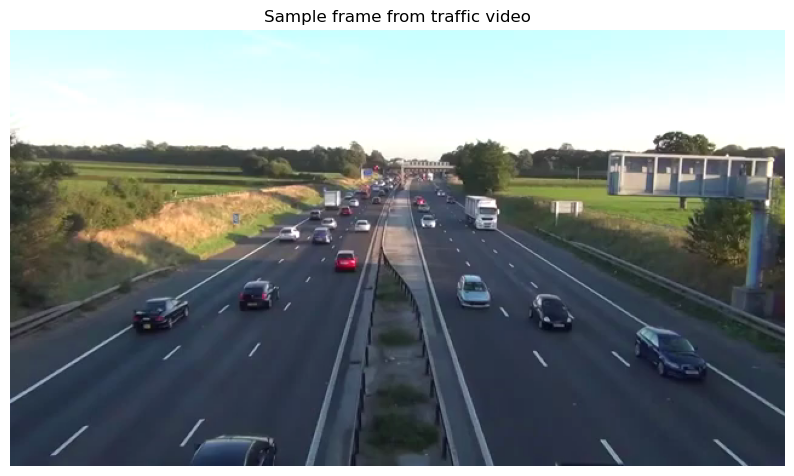
# Run tracking on the single frame
results = model.track(frame, persist=True, verbose=False)
result = results[0]

# Display annotated frame
annotated = result.plot()
annotated_rgb = cv2.cvtColor(annotated, cv2.COLOR_BGR2RGB)

plt.figure(figsize=(10, 6))
plt.imshow(annotated_rgb)
plt.title("First tracking result (with track IDs)")
plt.axis("off")
plt.show()
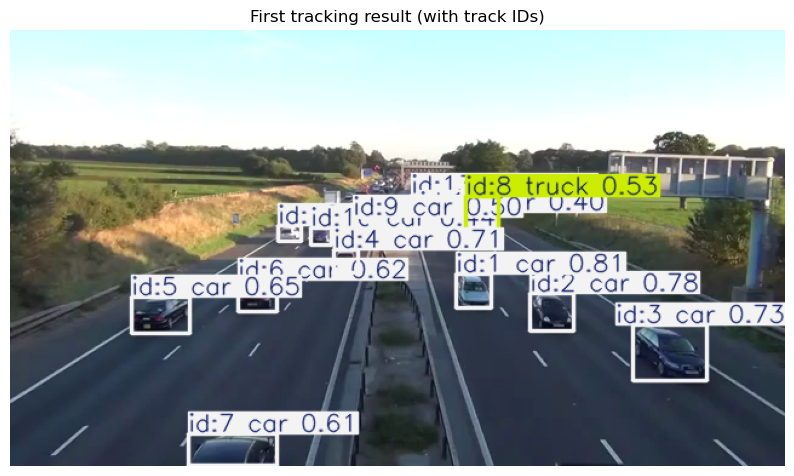
# Inspect the tracking results
print("Tracking results structure:")
print(f"  Classes detected: {result.boxes.cls.cpu().numpy()}")
print(f"  Track IDs: {result.boxes.id.cpu().numpy() if result.boxes.id is not None else 'None'}")
print(f"  Class names: {result.names}")

# List detections with their track IDs
print("\nDetected objects:")
for i, (cls_id, track_id) in enumerate(zip(result.boxes.cls, result.boxes.id)):
    cls_name = result.names[int(cls_id)]
    print(f"  {i+1}. {cls_name} (Track ID: {int(track_id)})")
Tracking results structure:
  Classes detected: [          2           2           2           2           2           2           2           7           2           2           2           2           2]
  Track IDs: [          1           2           3           4           5           6           7           8           9          10          11          12          13]
  Class names: {0: 'person', 1: 'bicycle', 2: 'car', 3: 'motorcycle', 4: 'airplane', 5: 'bus', 6: 'train', 7: 'truck', 8: 'boat', 9: 'traffic light', 10: 'fire hydrant', 11: 'stop sign', 12: 'parking meter', 13: 'bench', 14: 'bird', 15: 'cat', 16: 'dog', 17: 'horse', 18: 'sheep', 19: 'cow', 20: 'elephant', 21: 'bear', 22: 'zebra', 23: 'giraffe', 24: 'backpack', 25: 'umbrella', 26: 'handbag', 27: 'tie', 28: 'suitcase', 29: 'frisbee', 30: 'skis', 31: 'snowboard', 32: 'sports ball', 33: 'kite', 34: 'baseball bat', 35: 'baseball glove', 36: 'skateboard', 37: 'surfboard', 38: 'tennis racket', 39: 'bottle', 40: 'wine glass', 41: 'cup', 42: 'fork', 43: 'knife', 44: 'spoon', 45: 'bowl', 46: 'banana', 47: 'apple', 48: 'sandwich', 49: 'orange', 50: 'broccoli', 51: 'carrot', 52: 'hot dog', 53: 'pizza', 54: 'donut', 55: 'cake', 56: 'chair', 57: 'couch', 58: 'potted plant', 59: 'bed', 60: 'dining table', 61: 'toilet', 62: 'tv', 63: 'laptop', 64: 'mouse', 65: 'remote', 66: 'keyboard', 67: 'cell phone', 68: 'microwave', 69: 'oven', 70: 'toaster', 71: 'sink', 72: 'refrigerator', 73: 'book', 74: 'clock', 75: 'vase', 76: 'scissors', 77: 'teddy bear', 78: 'hair drier', 79: 'toothbrush'}

Detected objects:
  1. car (Track ID: 1)
  2. car (Track ID: 2)
  3. car (Track ID: 3)
  4. car (Track ID: 4)
  5. car (Track ID: 5)
  6. car (Track ID: 6)
  7. car (Track ID: 7)
  8. truck (Track ID: 8)
  9. car (Track ID: 9)
  10. car (Track ID: 10)
  11. car (Track ID: 11)
  12. car (Track ID: 12)
  13. car (Track ID: 13)
Track IDs and Common Challenges#
What are Track IDs?#
Each detected object receives a unique track ID that persists across frames. This ID allows us to:
Count unique objects (not just total detections)
Measure how long an object stays in view
Analyze movement patterns and trajectories
Accessing Track IDs#
result.boxes.id  # Tensor of track IDs (one per detection)
result.boxes.cls  # Class indices
result.boxes.xyxy  # Bounding box coordinates
Common Issues#
ID switches: When two objects cross paths, the tracker may swap their IDs
Lost tracks: If an object disappears for too long, it may get a new ID when it reappears
Fragmented tracks: Same object might have multiple IDs if detection is intermittent
These issues are inherent to tracking algorithms and can be mitigated by tuning parameters or using more sophisticated trackers.
Video Tracking Demo#
Let’s run tracking on the entire traffic video. The loop processes each frame, maintains track history, and displays the results.
# Video tracking loop (bounded for quick execution)
cap = cv2.VideoCapture(video_source)
frame_count = 0
max_frames = None if RUN_FULL_VIDEO else MAX_FRAMES

print(f"Running video tracking... (max_frames={'all' if max_frames is None else max_frames})")

while cap.isOpened():
    success, frame = cap.read()
    if not success:
        break

    frame_count += 1
    if max_frames is not None and frame_count > max_frames:
        break

    # Run tracking with persistence
    results = model.track(frame, persist=True, verbose=False)
    result = results[0]

    # Visualize results
    annotated = result.plot()
    show_frame(annotated)

cap.release()
print(f"Video tracking completed. Processed {frame_count} frames.")
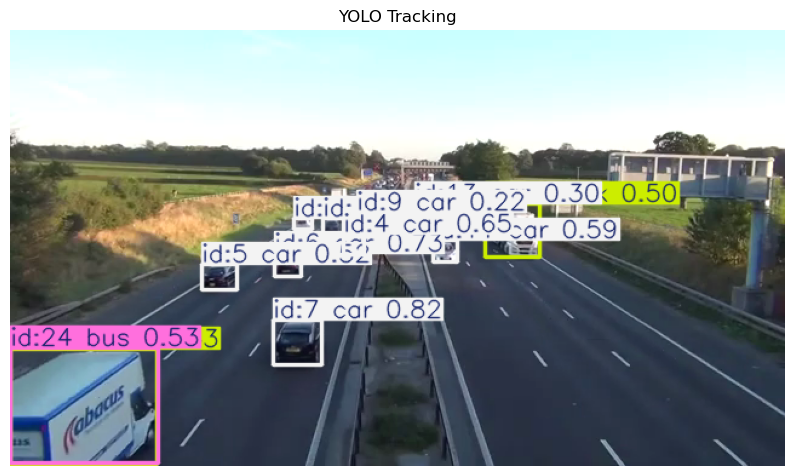
Video tracking completed. Processed 31 frames.
Optional: Webcam Tracking#
If you have a webcam, you can try real-time tracking. This works in local environments but not in hosted notebooks like Colab.
# Optional: Webcam tracking (uncomment to use)
# Requires local environment with webcam access

# cap = cv2.VideoCapture(0)  # 0 = default webcam
# print("Webcam tracking... Press 'q' to stop.")
#
# while cap.isOpened():
#     ret, frame = cap.read()
#     if not ret:
#         break
#
#     results = model.track(frame, persist=True, verbose=False)
#     annotated = results[0].plot()
#
#     cv2.imshow("Webcam Tracking", annotated)
#     if cv2.waitKey(1) & 0xFF == ord('q'):
#         break
#
# cap.release()
# cv2.destroyAllWindows()

print("Webcam code is commented out. Uncomment to try real-time tracking.")
Webcam code is commented out. Uncomment to try real-time tracking.
# Visualize coordinate system and NumPy indexing
cap = cv2.VideoCapture(video_source)
_, sample_frame = cap.read()
cap.release()

if sample_frame is not None:
    h, w = sample_frame.shape[:2]
    frame_rgb = cv2.cvtColor(sample_frame, cv2.COLOR_BGR2RGB)

    # Example ROI coordinates
    x1, y1, x2, y2 = 100, 150, 400, 300

    fig, axes = plt.subplots(1, 2, figsize=(16, 6))

    # Left plot: Coordinate system visualization
    ax = axes[0]
    ax.imshow(frame_rgb)

    # Draw ROI rectangle
    import matplotlib.patches as patches
    rect = patches.Rectangle((x1, y1), x2-x1, y2-y1,
                               linewidth=3, edgecolor='lime', facecolor='none')
    ax.add_patch(rect)

    # Annotate corners
    ax.plot(x1, y1, 'ro', markersize=10)
    ax.annotate(f'(x1, y1) = ({x1}, {y1})', (x1, y1),
                textcoords="offset points", xytext=(10, -30), fontsize=10,
                color='red', fontweight='bold',
                bbox=dict(boxstyle='round', facecolor='white', alpha=0.8))

    ax.plot(x2, y2, 'bo', markersize=10)
    ax.annotate(f'(x2, y2) = ({x2}, {y2})', (x2, y2),
                textcoords="offset points", xytext=(10, 10), fontsize=10,
                color='blue', fontweight='bold',
                bbox=dict(boxstyle='round', facecolor='white', alpha=0.8))

    # Draw axes arrows
    ax.annotate('', xy=(w-50, 30), xytext=(50, 30),
                arrowprops=dict(arrowstyle='->', color='yellow', lw=3))
    ax.text(w//2, 15, 'X (columns)', fontsize=11, color='yellow',
            ha='center', fontweight='bold')

    ax.annotate('', xy=(30, h-50), xytext=(30, 50),
                arrowprops=dict(arrowstyle='->', color='yellow', lw=3))
    ax.text(45, h//2, 'Y (rows)', fontsize=11, color='yellow',
            rotation=90, va='center', fontweight='bold')

    ax.plot(0, 0, 'y*', markersize=15)
    ax.set_xlabel(f'X (width = {w} pixels)', fontsize=11)
    ax.set_ylabel(f'Y (height = {h} pixels)', fontsize=11)
    ax.set_title('Image Coordinates: (x, y)', fontsize=13)

    # Right plot: Cropped region using NumPy indexing
    ax2 = axes[1]
    # NumPy indexing: img[y1:y2, x1:x2] = img[rows, cols]
    cropped = frame_rgb[y1:y2, x1:x2]
    ax2.imshow(cropped)
    ax2.set_title(f'Cropped with NumPy: img[{y1}:{y2}, {x1}:{x2}]', fontsize=13)
    ax2.set_xlabel(f'Width = {x2-x1} pixels')
    ax2.set_ylabel(f'Height = {y2-y1} pixels')

    plt.tight_layout()
    plt.show()

    # Print explanation
    print("=" * 60)
    print("IMAGE COORDINATES vs NUMPY INDEXING")
    print("=" * 60)
    print(f"\nImage shape: {sample_frame.shape} = (height, width, channels)")
    print(f"             ({h}, {w}, 3) = ({h} rows, {w} columns, 3 channels)")
    print(f"\nROI coordinates (xyxy): ({x1}, {y1}, {x2}, {y2})")
    print(f"  - Top-left:     (x1, y1) = ({x1}, {y1})")
    print(f"  - Bottom-right: (x2, y2) = ({x2}, {y2})")
    print(f"\nNumPy indexing to crop this region:")
    print(f"  cropped = img[y1:y2, x1:x2]")
    print(f"  cropped = img[{y1}:{y2}, {x1}:{x2}]  # [rows, cols]")
    print(f"\nCropped shape: {cropped.shape} = ({y2-y1}, {x2-x1}, 3)")
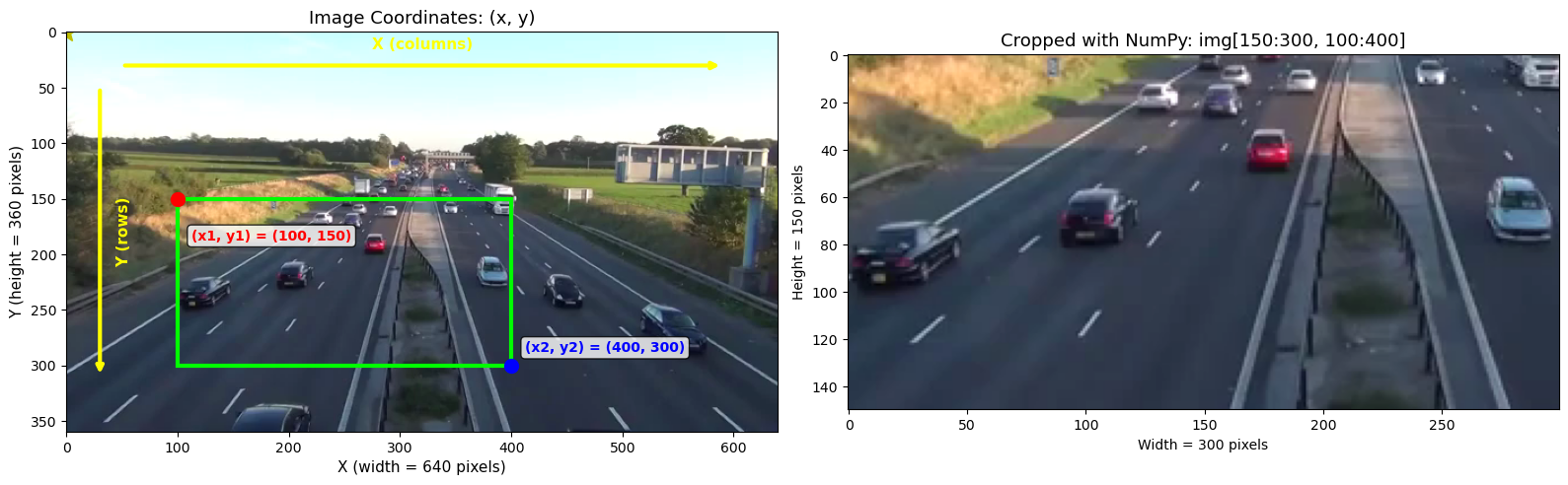
============================================================
IMAGE COORDINATES vs NUMPY INDEXING
============================================================

Image shape: (360, 640, 3) = (height, width, channels)
             (360, 640, 3) = (360 rows, 640 columns, 3 channels)

ROI coordinates (xyxy): (100, 150, 400, 300)
  - Top-left:     (x1, y1) = (100, 150)
  - Bottom-right: (x2, y2) = (400, 300)

NumPy indexing to crop this region:
  cropped = img[y1:y2, x1:x2]
  cropped = img[150:300, 100:400]  # [rows, cols]

Cropped shape: (150, 300, 3) = (150, 300, 3)
Understanding Image Coordinates and NumPy Indexing#
Before working with ROIs, let’s understand how image coordinates work and how they relate to NumPy array indexing.
The Image Coordinate System#
In images and computer vision, the coordinate system is different from standard math:
(0,0) ────────────────────────▶ X (columns)
  │
  │    ┌─────────────────┐
  │    │                 │
  │    │      IMAGE      │
  │    │                 │
  │    │                 │
  │    └─────────────────┘
  │                        (width, height)
  ▼
  Y (rows)
Key points:
Origin (0, 0) is at the top-left corner
X axis increases to the right (columns)
Y axis increases downward (rows)
NumPy Array Indexing vs Image Coordinates#
⚠️ This is a common source of confusion!
Concept |
Format |
Example |
|---|---|---|
Image coordinates |
|
Point at x=100, y=50 |
NumPy indexing |
|
|
Image shape |
|
|
# To access pixel at coordinates (x=100, y=50):
pixel = img[y, x]  # img[50, 100] - NumPy uses [row, col]!

# To extract a region from (x1,y1) to (x2,y2):
region = img[y1:y2, x1:x2]  # NumPy slicing: [rows, cols]
Bounding Box Format (xyxy)#
YOLO and OpenCV use xyxy format: (x1, y1, x2, y2)
(x1, y1) ─────────────────┐
    │                     │
    │     BOUNDING BOX    │
    │                     │
    └─────────────────────┘ (x2, y2)
(x1, y1): Top-left corner(x2, y2): Bottom-right corner
To crop this region with NumPy:
cropped = img[y1:y2, x1:x2] # Remember: [rows, cols] = [y, x]
Counting Objects with a Region of Interest (ROI)#
A common use case for tracking is counting objects that pass through a specific area. We define a Region of Interest (ROI) as a rectangle and count unique objects whose centers fall within it.
Why Use an ROI?#
Count vehicles crossing a specific road section
Monitor entries/exits at a gate or door
Focus on relevant areas while ignoring distractions
class SimpleObjectCounter:
    """
    Count unique objects passing through a region of interest.
    """

    def __init__(self, roi, class_names=None):
        """
        Args:
            roi: Tuple (x1, y1, x2, y2) defining the rectangular region
            class_names: List of class names to count, or None for all classes
        """
        self.roi = roi
        self.class_names = class_names
        self.unique_objects = {}  # {class_name: set of track_ids}

    def is_in_roi(self, box):
        """Check if box center is within ROI."""
        x_center = (box[0] + box[2]) / 2
        y_center = (box[1] + box[3]) / 2
        return (self.roi[0] < x_center < self.roi[2] and
                self.roi[1] < y_center < self.roi[3])

    def update(self, result):
        """Update counts based on tracking results."""
        if result.boxes.id is None:
            return

        for i in range(len(result.boxes)):
            box = result.boxes.xyxy[i].cpu().numpy()
            track_id = int(result.boxes.id[i])
            cls_name = result.names[int(result.boxes.cls[i])]

            if self.is_in_roi(box):
                if self.class_names is None or cls_name in self.class_names:
                    if cls_name not in self.unique_objects:
                        self.unique_objects[cls_name] = set()
                    self.unique_objects[cls_name].add(track_id)

    def get_counts(self):
        """Return dictionary of counts per class."""
        return {cls: len(ids) for cls, ids in self.unique_objects.items()}
# Define ROI and classes to count
roi = (100, 150, 500, 350)  # (x1, y1, x2, y2)
classes_to_count = ['truck', 'car', 'bus']

counter = SimpleObjectCounter(roi, classes_to_count)

# Run tracking with counting (bounded)
cap = cv2.VideoCapture(video_source)
frame_count = 0
max_frames = None if RUN_FULL_VIDEO else MAX_FRAMES

print(f"Counting objects in ROI: {roi}")
print(f"Classes: {classes_to_count}")
print(f"Processing {'all' if max_frames is None else max_frames} frames...")

while cap.isOpened():
    success, frame = cap.read()
    if not success:
        break

    frame_count += 1
    if max_frames is not None and frame_count > max_frames:
        break

    results = model.track(frame, persist=True, verbose=False)
    result = results[0]

    # Update counter
    counter.update(result)

    # Display with ROI
    annotated = result.plot()

    # Add count overlay
    counts = counter.get_counts()
    y_pos = 30
    for cls_name, count in counts.items():
        text = f"{cls_name}: {count}"
        cv2.putText(annotated, text, (10, y_pos),
                    cv2.FONT_HERSHEY_SIMPLEX, 0.8, (0, 255, 0), 2)
        y_pos += 30

    show_frame(annotated, roi)

cap.release()

print(f"\nProcessed {frame_count} frames.")
print("Final counts:")
for cls_name, count in counter.get_counts().items():
    print(f"  {cls_name}: {count} unique objects")
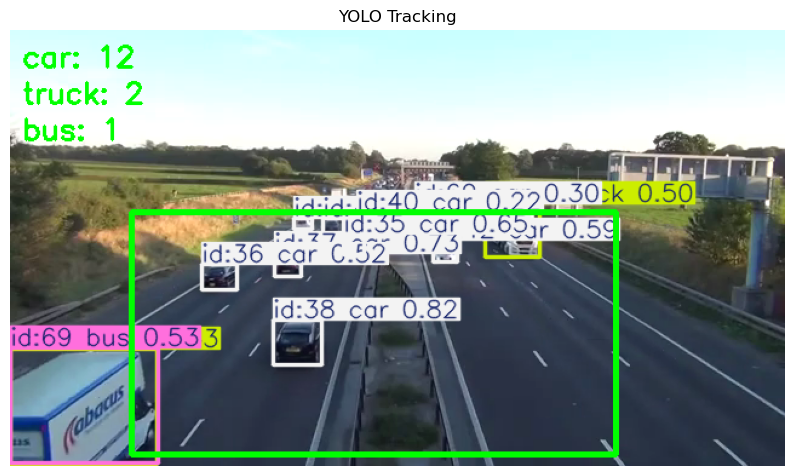
Processed 31 frames.
Final counts:
  car: 12 unique objects
  truck: 2 unique objects
  bus: 1 unique objects
Exercise 1: Count Unique Trucks#
Count unique trucks (by track ID) in the video.
Key API:
result.boxes.id- track IDs (None if no tracking)result.names[int(box.cls)]- class nameUse a
set()to collect unique IDs
# Exercise 1: Count unique trucks in the video

cap = cv2.VideoCapture(video_source)
unique_truck_ids = set()
frame_count = 0
max_frames = None if RUN_FULL_VIDEO else MAX_FRAMES

print(f"Counting unique trucks... (max_frames={'all' if max_frames is None else max_frames})")

while cap.isOpened():
    success, frame = cap.read()
    if not success:
        break

    frame_count += 1
    if max_frames is not None and frame_count > max_frames:
        break

    results = model.track(frame, persist=True, verbose=False)
    result = results[0]

    # TODO: Loop over detections and add truck track IDs to unique_truck_ids
    # Hint: Use result.names to map class IDs to names (e.g., 'truck')
    # Hint: Use result.boxes.id to get track IDs
    # Hint: Check if result.boxes.id is not None before accessing it

    pass  # Your code here

    annotated = result.plot()
    show_frame(annotated)

cap.release()

print(f"\nProcessed {frame_count} frames.")
print(f"Total unique trucks: {len(unique_truck_ids)}")
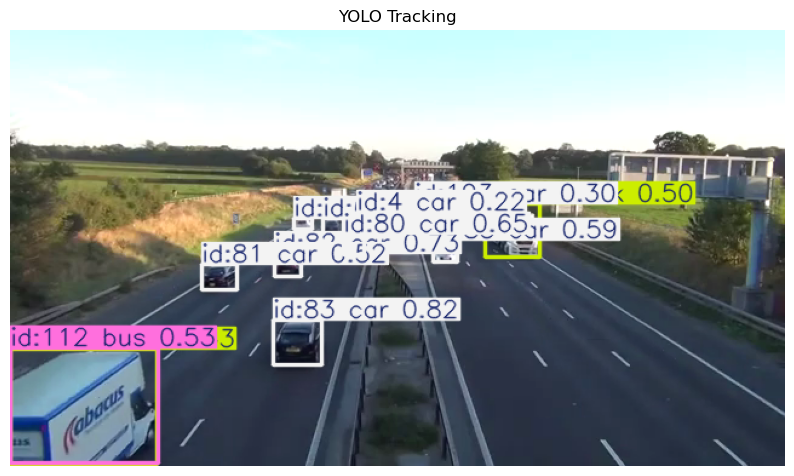
Processed 31 frames.
Total unique trucks: 0
Exercise 2: Lane-wise Truck Counts#
Count trucks in two separate lanes using ROIs.
Key API:
ROI format:
(x1, y1, x2, y2)- top-left and bottom-right cornersCreate
SimpleObjectCounter(roi, ['truck'])for each laneCall
counter.update(result)each frame
# First, visualize the last frame to help define ROIs
cap = cv2.VideoCapture(video_source)
last_frame = None
while cap.isOpened():
    success, frame = cap.read()
    if not success:
        break
    last_frame = frame
cap.release()

if last_frame is not None:
    plt.figure(figsize=(12, 7))
    plt.imshow(cv2.cvtColor(last_frame, cv2.COLOR_BGR2RGB))
    plt.title("Reference frame for defining lane ROIs")
    plt.axis("on")  # Keep axis to see coordinates
    plt.show()
    print(f"Frame size: {last_frame.shape[1]} x {last_frame.shape[0]}")
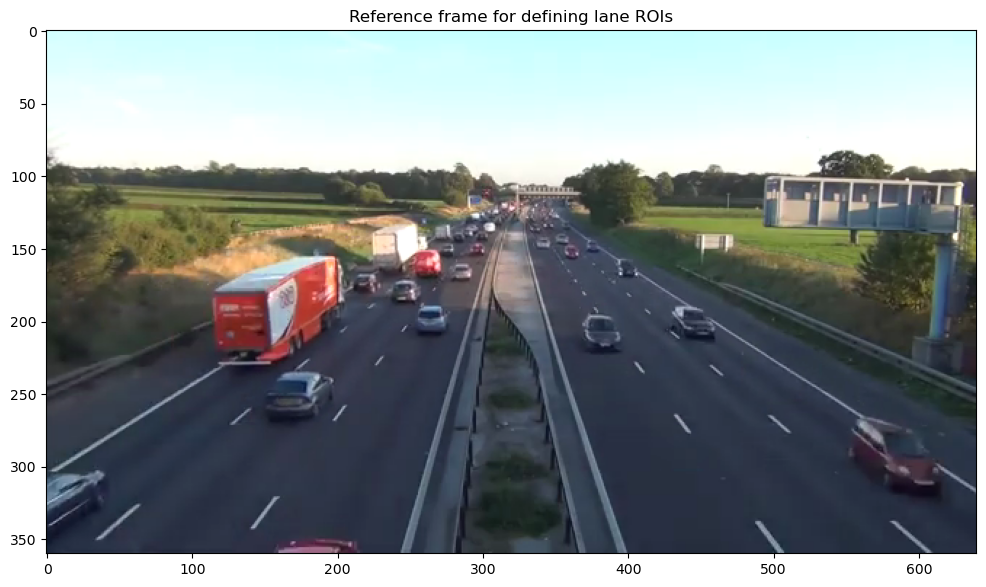
Frame size: 640 x 360
# Exercise 2: Count trucks per lane

# TODO: Define ROIs for left and right lanes based on the reference frame above
# Hint: ROI format is (x1, y1, x2, y2) where (x1, y1) is top-left corner
left_lane_roi = None  # Replace with actual coordinates
right_lane_roi = None  # Replace with actual coordinates

# TODO: Create two SimpleObjectCounter instances, one for each lane
# Hint: SimpleObjectCounter(roi, ['truck'])
left_counter = None  # Your counter here
right_counter = None  # Your counter here

# TODO: Run tracking loop and update both counters
# Hint: Call counter.update(result) for each counter
# Hint: Draw both ROIs on the annotated frame using cv2.rectangle

pass  # Your tracking loop here

# TODO: Print final counts
# Hint: Use counter.get_counts().get('truck', 0) to get truck count
# Calculate and print: left lane trucks, right lane trucks, difference

pass  # Your print statements here
Recap#
Key Takeaways#
Object tracking extends detection by maintaining consistent IDs across frames
Tracking-by-detection runs a detector on each frame and associates detections over time
Track IDs (
result.boxes.id) uniquely identify each object throughout a videomodel.track(..., persist=True)maintains tracking history between callsTracking algorithms (BoT-SORT, ByteTrack) differ in how they handle occlusions and associations
Region of Interest (ROI) allows focused counting in specific image areas
Unique object counting uses track IDs to avoid double-counting the same object
Common challenges: Occlusion, ID switches, missed detections, objects entering/leaving the scene