
03 - Introduction to Pillow & Image Fundamentals#
Pillow is an open-source Python Imaging Library that adds powerful image processing capabilities to Python. It is the modern, actively maintained fork of the original Python Imaging Library (PIL).
This notebook covers two main topics:
What is an image? – Understanding images as data (pixels, resolution, RGB vs grayscale)
Practical image manipulation with Pillow – Loading, displaying, transforming, and enhancing images
You will learn basic operations like rotating, cropping, and resizing images, as well as adjusting properties like brightness, contrast, color, and sharpness.
Installation and Setup#
First, let’s install and import the necessary libraries.
# Pillow Installation (run only if needed)
# In Google Colab: Pillow is pre-installed
# Locally: pip install Pillow
#
# Uncomment if you get "ModuleNotFoundError: No module named 'PIL'"
# !pip install Pillow
from PIL import Image, ImageEnhance
import numpy as np
import matplotlib.pyplot as plt
import requests
from io import BytesIO

# Configure matplotlib for inline display
%matplotlib inline

# Base URL for images hosted on GitHub
BASE_URL = "https://raw.githubusercontent.com/ezponda/ai-application-course-materials/main/images/"

def load_image_from_url(filename):
    """Load an image from GitHub repository."""
    url = BASE_URL + filename
    response = requests.get(url)
    return Image.open(BytesIO(response.content))
Image Object in Pillow#
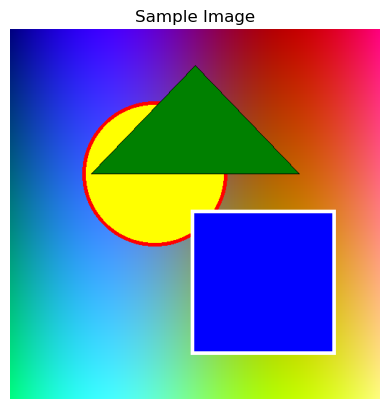
Images in Pillow are represented as Image objects. These objects provide attributes and methods for accessing image data and performing operations.
Let’s load a sample image and explore its properties.
# Load an image from GitHub repository
image = load_image_from_url("pillow_sample.png")

print("Image loaded successfully!")
Image loaded successfully!
Key Attributes of an Image Object#
An Image object has several important attributes:
format: The format of the source file (e.g., PNG, JPEG, BMP)size: A tuple (width, height) representing the image dimensions in pixelsmode: The pixel format and depth:'L'for grayscale (8-bit pixels)'RGB'for true color (3 × 8-bit pixels)'RGBA'for true color with transparency'CMYK'for pre-press images
info: A dictionary containing metadata (e.g., DPI, EXIF data)
print('Format:', image.format)
print('Size:', image.size, '(width × height in pixels)')
print('Mode:', image.mode)
print('Info:', image.info)
Format: PNG
Size: (512, 512) (width × height in pixels)
Mode: RGB
Info: {}
Converting Between Pillow and NumPy#
Pillow images can be easily converted to NumPy arrays and vice versa. This is useful for numerical operations and integration with machine learning frameworks.
# Convert the Pillow image to a NumPy array
image_array = np.array(image)

# Display the shape: (height, width, channels)
print('Array shape:', image_array.shape)
print('Data type:', image_array.dtype)
print('Value range:', image_array.min(), 'to', image_array.max())
Array shape: (512, 512, 3)
Data type: uint8
Value range: 0 to 255
# View a small portion of the array (top-left 3×3 pixels)
print('Top-left 3×3 pixels (RGB values):')
print(image_array[:3, :3, :])
Top-left 3×3 pixels (RGB values):
[[[  0   0 128]
  [  0   0 129]
  [  0   0 131]]

 [[  0   0 128]
  [  0   0 129]
  [  0   0 131]]

 [[  0   0 128]
  [  0   0 129]
  [  0   0 131]]]
# Convert the NumPy array back to a Pillow Image object
new_image = Image.fromarray(image_array)
print('Successfully converted back to Pillow Image')
print('New image size:', new_image.size)
Successfully converted back to Pillow Image
New image size: (512, 512)
Displaying Images#
There are two common ways to display images in Python:
Pillow’s
.show()method: Opens the image in your system’s default image viewerMatplotlib: Displays the image inline in Jupyter notebooks (recommended for interactive work)
# Option 1: Using Pillow's show() method
# Uncomment the line below to open the image in your system's default viewer
image.show()
# Option 2: Using Matplotlib (recommended for notebooks)
plt.imshow(image)
plt.axis('off')  # Turn off axis numbers and labels
plt.title('Sample Image')
plt.show()
RGB Images and Grayscale Conversion#
Understanding RGB Images#
An RGB image is composed of three color channels: Red, Green, and Blue. Each pixel has three values (typically 0-255) representing the intensity of each color.
Let’s split the image into its individual color channels and visualize them.
# Split the image into R, G, B channels
r, g, b = image.split()

print('Image mode:', image.mode)
print('Each channel is a grayscale image with mode:', r.mode)
Image mode: RGB
Each channel is a grayscale image with mode: L
# Visualize the three color channels
fig, axes = plt.subplots(1, 3, figsize=(15, 5))

axes[0].imshow(r, cmap='Reds')
axes[0].set_title('Red Channel')
axes[0].axis('off')

axes[1].imshow(g, cmap='Greens')
axes[1].set_title('Green Channel')
axes[1].axis('off')

axes[2].imshow(b, cmap='Blues')
axes[2].set_title('Blue Channel')
axes[2].axis('off')

plt.tight_layout()
plt.show()
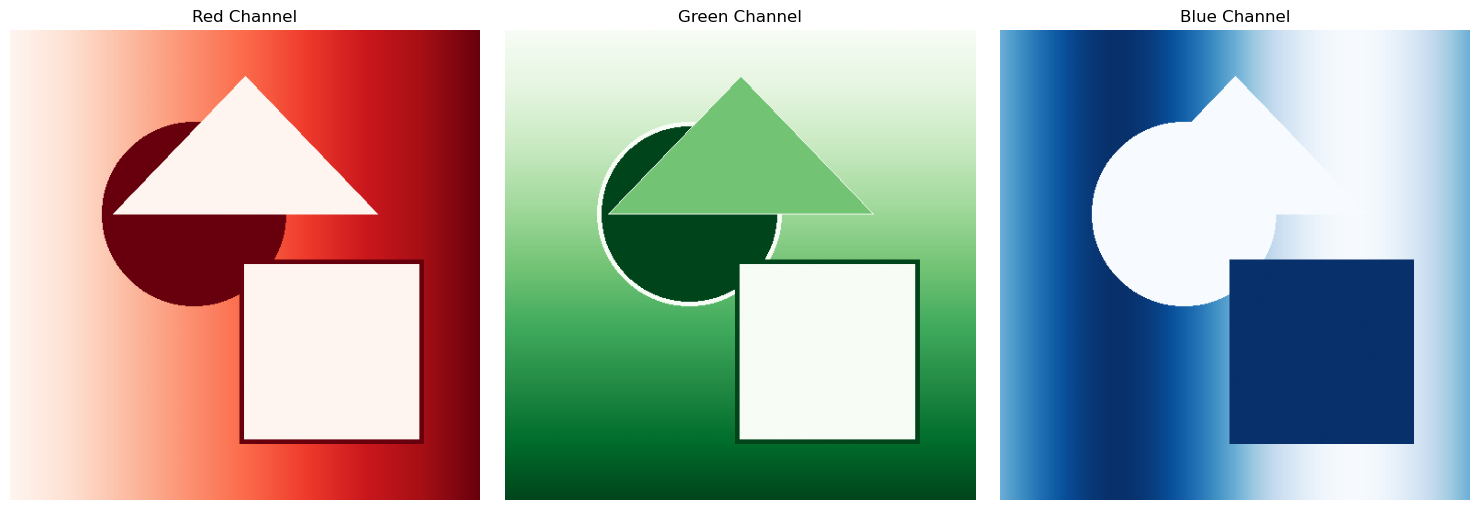
What we observe:
The red channel shows bright values where red color is prominent
The green channel highlights areas with green tones
The blue channel emphasizes blue regions
Brighter pixels in each channel indicate higher intensity of that color component
Converting to Grayscale#
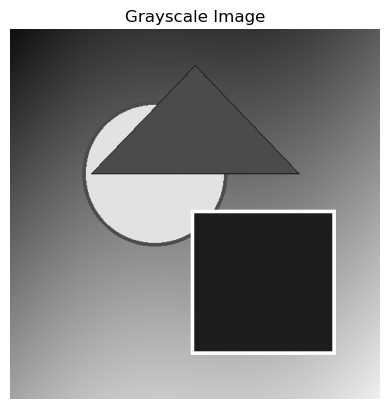
Grayscale images contain only shades of gray (no color information). Each pixel is represented by a single value indicating luminance (light intensity) from 0 (black) to 255 (white).
The conversion uses a weighted sum of RGB components:
These weights approximate human perception, where we are most sensitive to green light.
# Convert to grayscale using Pillow's convert method
gray_image = image.convert('L')

print('Original mode:', image.mode)
print('Grayscale mode:', gray_image.mode)
print('Original size:', image.size)
print('Grayscale size:', gray_image.size)
Original mode: RGB
Grayscale mode: L
Original size: (512, 512)
Grayscale size: (512, 512)
# Display the grayscale image
plt.imshow(gray_image, cmap='gray')
plt.axis('off')
plt.title('Grayscale Image')
plt.show()
Basic Image Manipulation#
Pillow provides various methods for basic image transformations. These operations are essential for data preprocessing, augmentation, and computer vision tasks.
Transposing and Flipping#
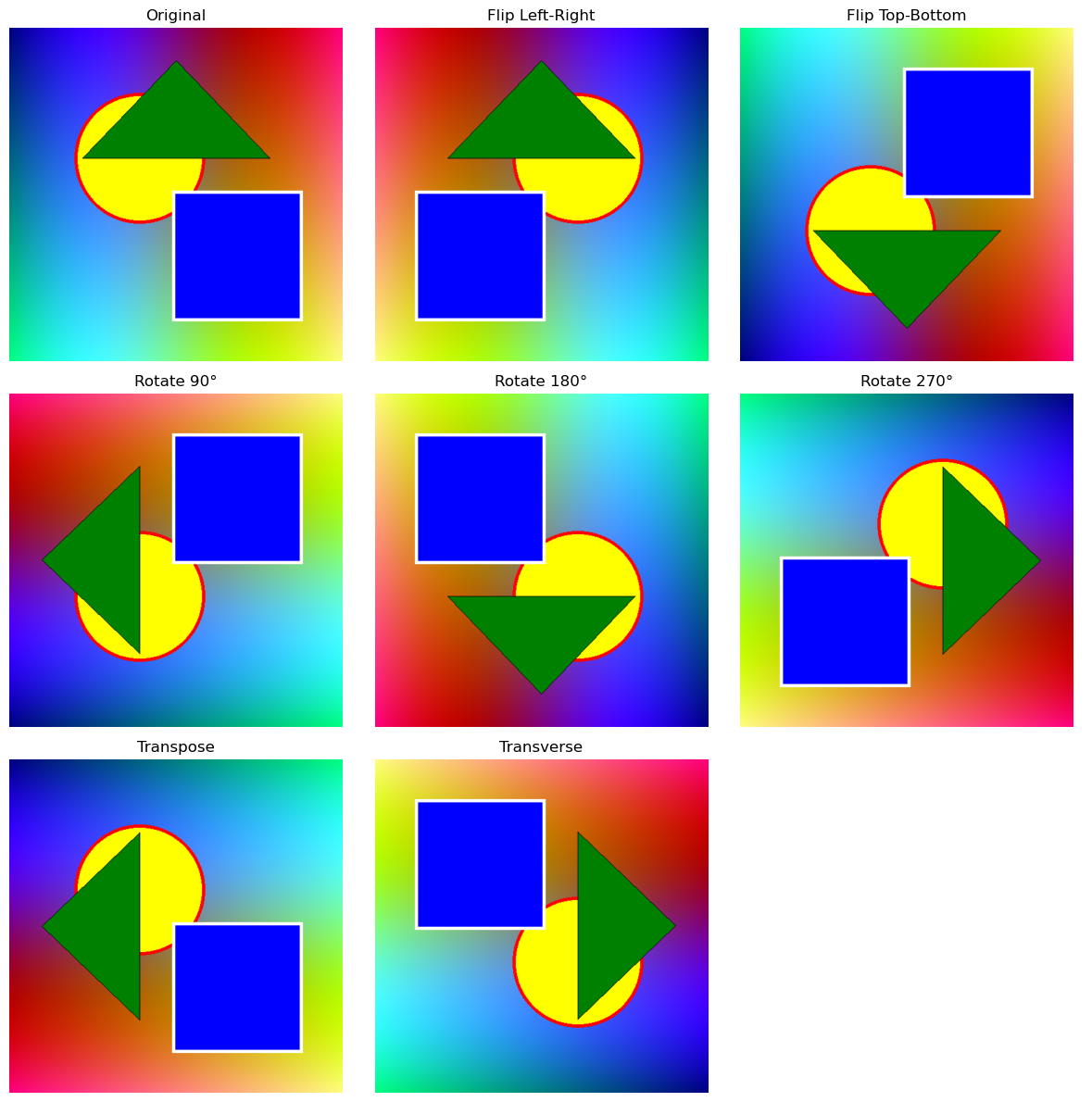
The .transpose() method allows flipping and rotating images. Common operations include:
Image.FLIP_LEFT_RIGHT: Horizontal flip (mirror)Image.FLIP_TOP_BOTTOM: Vertical flipImage.ROTATE_90: Rotate 90° counterclockwiseImage.ROTATE_180: Rotate 180°Image.ROTATE_270: Rotate 270° counterclockwise (90° clockwise)Image.TRANSPOSE: Transpose (flip over main diagonal)Image.TRANSVERSE: Transverse (flip over secondary diagonal)
When are these useful?
Data augmentation in machine learning to increase dataset diversity
Correcting image orientation
Creating symmetrical patterns
# Apply different transpositions and rotations
flipped_lr = image.transpose(Image.FLIP_LEFT_RIGHT)
flipped_tb = image.transpose(Image.FLIP_TOP_BOTTOM)
rotated_90 = image.transpose(Image.ROTATE_90)
rotated_180 = image.transpose(Image.ROTATE_180)
rotated_270 = image.transpose(Image.ROTATE_270)
transposed = image.transpose(Image.TRANSPOSE)
transversed = image.transpose(Image.TRANSVERSE)

# Visualize all transformations
fig, axs = plt.subplots(3, 3, figsize=(12, 12))

axs[0, 0].imshow(image)
axs[0, 0].set_title("Original")
axs[0, 0].axis('off')

axs[0, 1].imshow(flipped_lr)
axs[0, 1].set_title("Flip Left-Right")
axs[0, 1].axis('off')

axs[0, 2].imshow(flipped_tb)
axs[0, 2].set_title("Flip Top-Bottom")
axs[0, 2].axis('off')

axs[1, 0].imshow(rotated_90)
axs[1, 0].set_title("Rotate 90°")
axs[1, 0].axis('off')

axs[1, 1].imshow(rotated_180)
axs[1, 1].set_title("Rotate 180°")
axs[1, 1].axis('off')

axs[1, 2].imshow(rotated_270)
axs[1, 2].set_title("Rotate 270°")
axs[1, 2].axis('off')

axs[2, 0].imshow(transposed)
axs[2, 0].set_title("Transpose")
axs[2, 0].axis('off')

axs[2, 1].imshow(transversed)
axs[2, 1].set_title("Transverse")
axs[2, 1].axis('off')

axs[2, 2].axis('off')

plt.tight_layout()
plt.show()
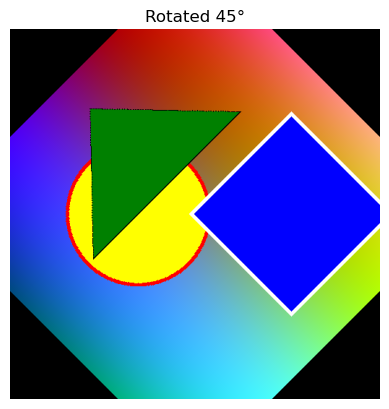
Rotating by Arbitrary Angles#
The .rotate() method allows rotation by any angle (in degrees, counterclockwise).
Practical uses:
Correcting tilted images
Data augmentation with various rotation angles
# Rotate by 45 degrees
rotated_image = image.rotate(45)

plt.imshow(rotated_image)
plt.axis('off')
plt.title('Rotated 45°')
plt.show()
Cropping an Image#
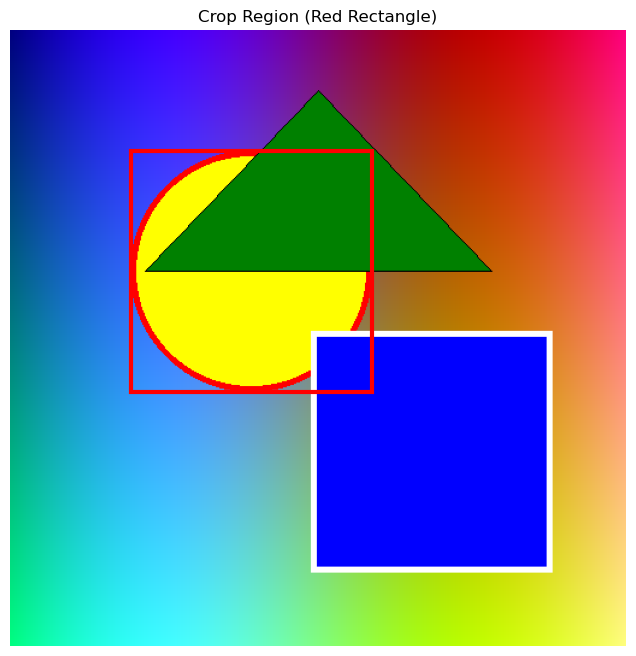
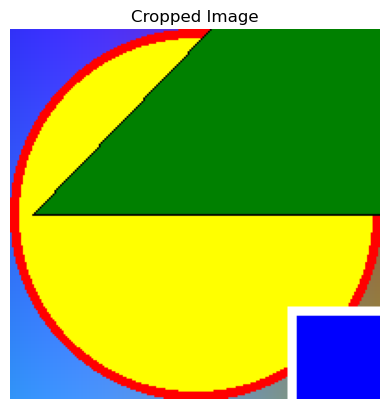
The .crop() method extracts a rectangular region from an image. It takes a tuple (left, upper, right, lower) defining the box coordinates:
left: x-coordinate of the left edgeupper: y-coordinate of the top edgeright: x-coordinate of the right edgelower: y-coordinate of the bottom edge
Coordinates are relative to the top-left corner (0, 0).
Practical uses:
Extracting regions of interest
Removing unwanted borders
Preparing images for models that require specific input sizes
import matplotlib.patches as patches

# Define the crop region
crop_box = (100, 100, 300, 300)

# Visualize the crop region on the original image
fig, ax = plt.subplots(figsize=(8, 8))
ax.imshow(image)

# Draw a red rectangle showing the crop region
rect = patches.Rectangle(
    (crop_box[0], crop_box[1]),
    crop_box[2] - crop_box[0],
    crop_box[3] - crop_box[1],
    linewidth=3,
    edgecolor='red',
    facecolor='none'
)
ax.add_patch(rect)
ax.set_title('Crop Region (Red Rectangle)')
ax.axis('off')
plt.show()
# Perform the crop
cropped_image = image.crop(crop_box)

# Display the cropped result
plt.imshow(cropped_image)
plt.axis('off')
plt.title('Cropped Image')
plt.show()

print(f'Original size: {image.size}')
print(f'Cropped size: {cropped_image.size}')
Original size: (512, 512)
Cropped size: (200, 200)
Resizing an Image#
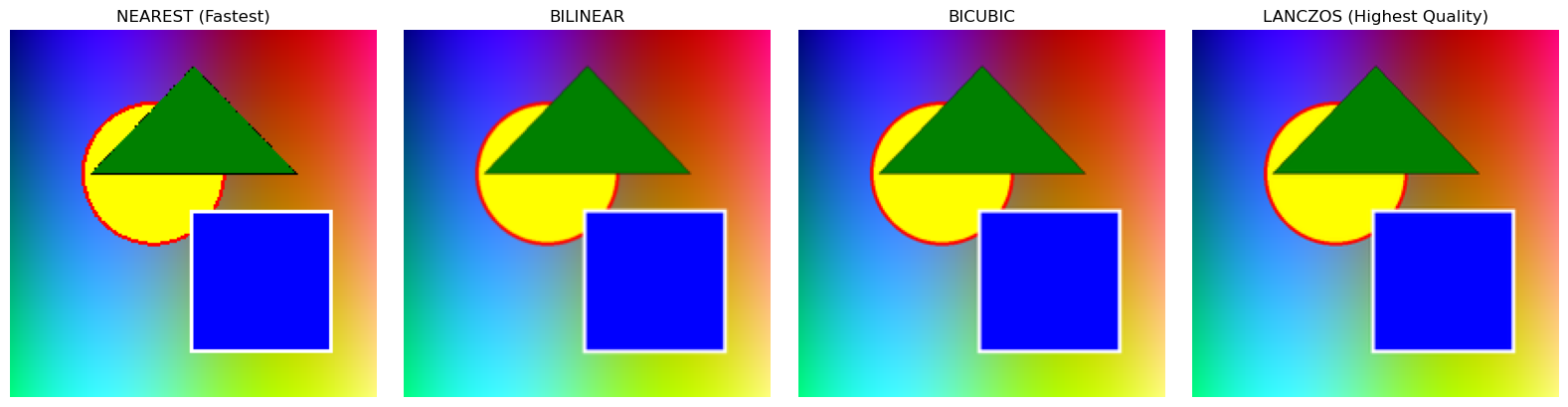
The .resize() method changes the image dimensions. It accepts:
size: A tuple
(width, height)for the new dimensionsresample (optional): The resampling filter, which affects quality:
Image.NEAREST: Fastest, lowest quality (nearest neighbor)Image.BILINEAR: Linear interpolationImage.BICUBIC: Cubic interpolation (better quality)Image.LANCZOS: Highest quality, best for downsampling
Practical uses:
Preparing images for neural networks (fixed input size)
Creating thumbnails
Reducing computational requirements
# Resize to 200×200 using LANCZOS (high quality)
resized_image = image.resize((200, 200), Image.LANCZOS)

print(f'Original size: {image.size}')
print(f'Resized size: {resized_image.size}')
Original size: (512, 512)
Resized size: (200, 200)
# Compare different resampling methods
nearest = image.resize((200, 200), Image.NEAREST)
bilinear = image.resize((200, 200), Image.BILINEAR)
bicubic = image.resize((200, 200), Image.BICUBIC)
lanczos = image.resize((200, 200), Image.LANCZOS)

# Visualize the differences
fig, axes = plt.subplots(1, 4, figsize=(16, 4))

axes[0].imshow(nearest)
axes[0].set_title("NEAREST (Fastest)")
axes[0].axis('off')

axes[1].imshow(bilinear)
axes[1].set_title("BILINEAR")
axes[1].axis('off')

axes[2].imshow(bicubic)
axes[2].set_title("BICUBIC")
axes[2].axis('off')

axes[3].imshow(lanczos)
axes[3].set_title("LANCZOS (Highest Quality)")
axes[3].axis('off')

plt.tight_layout()
plt.show()
Example: Combining Operations#
Let’s combine multiple operations in sequence. For instance, we can crop a region and then resize it back to the original size.
# Save the original size
original_size = image.size

# Crop a region
crop_box = (100, 100, 400, 400)
cropped = image.crop(crop_box)

# Resize back to original dimensions (zooms in on the cropped region)
zoomed_image = cropped.resize(original_size, Image.LANCZOS)

# Display side by side
fig, axes = plt.subplots(1, 2, figsize=(12, 6))

axes[0].imshow(image)
axes[0].set_title('Original Image')
axes[0].axis('off')

axes[1].imshow(zoomed_image)
axes[1].set_title('Cropped + Resized (Zoomed)')
axes[1].axis('off')

plt.tight_layout()
plt.show()
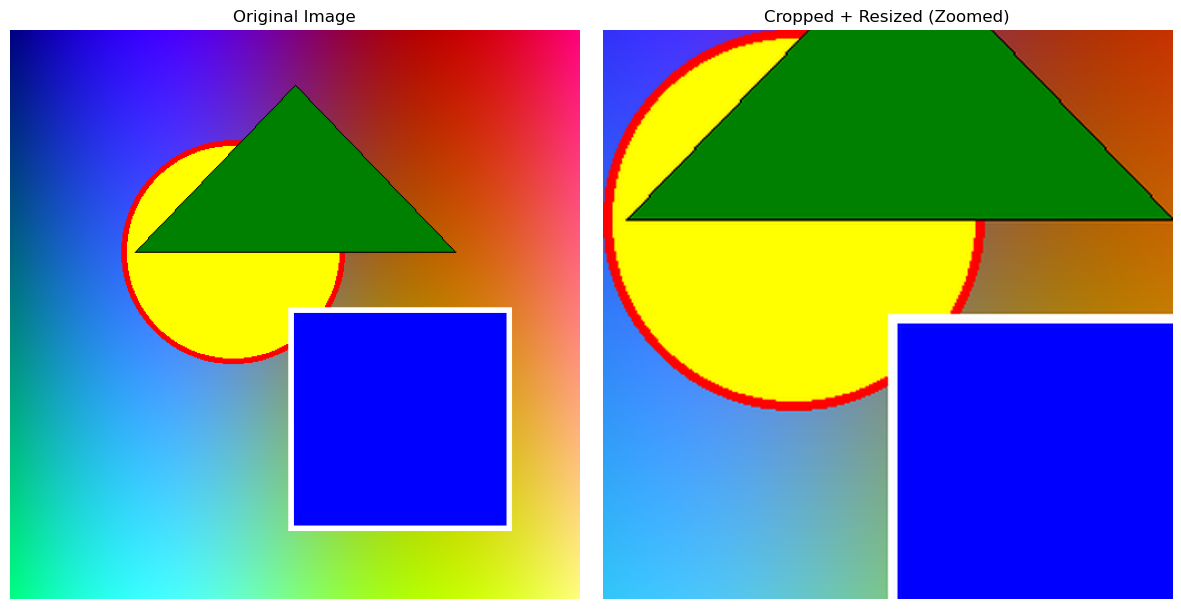
Image Enhancements#
The ImageEnhance module in Pillow provides methods for adjusting common image properties like brightness, contrast, color saturation, and sharpness. These adjustments are useful for image preprocessing and correction.
Contrast Enhancement#
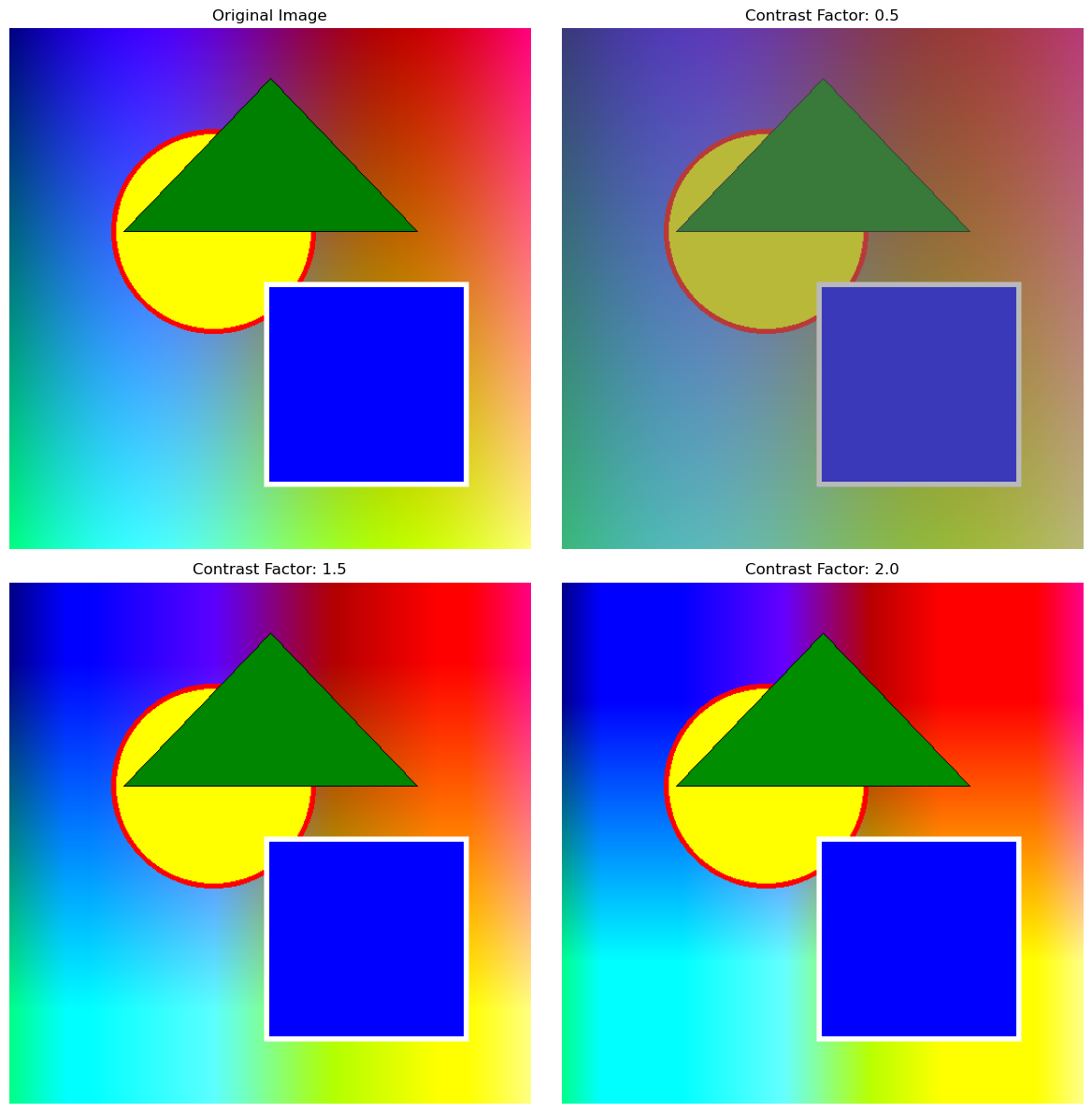
Contrast refers to the difference between light and dark areas in an image. High contrast images have distinct differences, while low contrast images appear washed out.
Factor interpretation:
Factor > 1: increases contrast
Factor = 1: no change
Factor < 1: decreases contrast
Factor = 0: produces a gray image
# Demonstrate contrast enhancement
contrast_factors = [0.5, 1.5, 2.0]
contrast_images = [ImageEnhance.Contrast(image).enhance(factor) for factor in contrast_factors]

# Visualize
fig, axes = plt.subplots(2, 2, figsize=(12, 12))

axes[0, 0].imshow(image)
axes[0, 0].set_title('Original Image')
axes[0, 0].axis('off')

for i, (contrast_image, factor) in enumerate(zip(contrast_images, contrast_factors)):
    row = (i + 1) // 2
    col = (i + 1) % 2
    axes[row, col].imshow(contrast_image)
    axes[row, col].set_title(f'Contrast Factor: {factor}')
    axes[row, col].axis('off')

plt.tight_layout()
plt.show()
Brightness Enhancement#
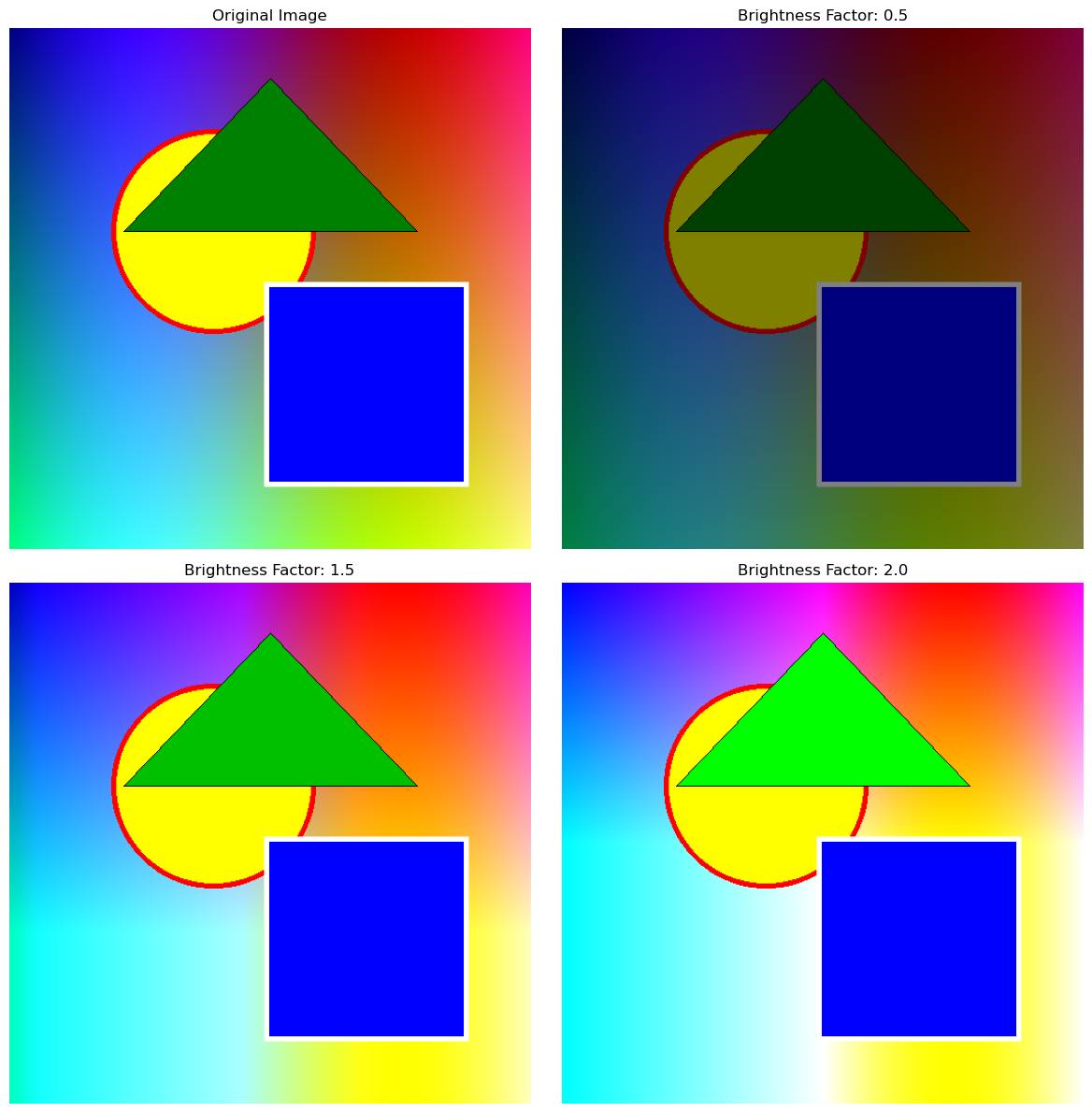
Brightness controls the overall light intensity of an image.
Factor interpretation:
Factor > 1: brightens the image
Factor = 1: no change
Factor < 1: darkens the image
Factor = 0: produces a black image
# Demonstrate brightness enhancement
bright_factors = [0.5, 1.5, 2.0]
bright_images = [ImageEnhance.Brightness(image).enhance(factor) for factor in bright_factors]

# Visualize
fig, axes = plt.subplots(2, 2, figsize=(12, 12))

axes[0, 0].imshow(image)
axes[0, 0].set_title('Original Image')
axes[0, 0].axis('off')

for i, (bright_image, factor) in enumerate(zip(bright_images, bright_factors)):
    row = (i + 1) // 2
    col = (i + 1) % 2
    axes[row, col].imshow(bright_image)
    axes[row, col].set_title(f'Brightness Factor: {factor}')
    axes[row, col].axis('off')

plt.tight_layout()
plt.show()
Color Balance Enhancement#
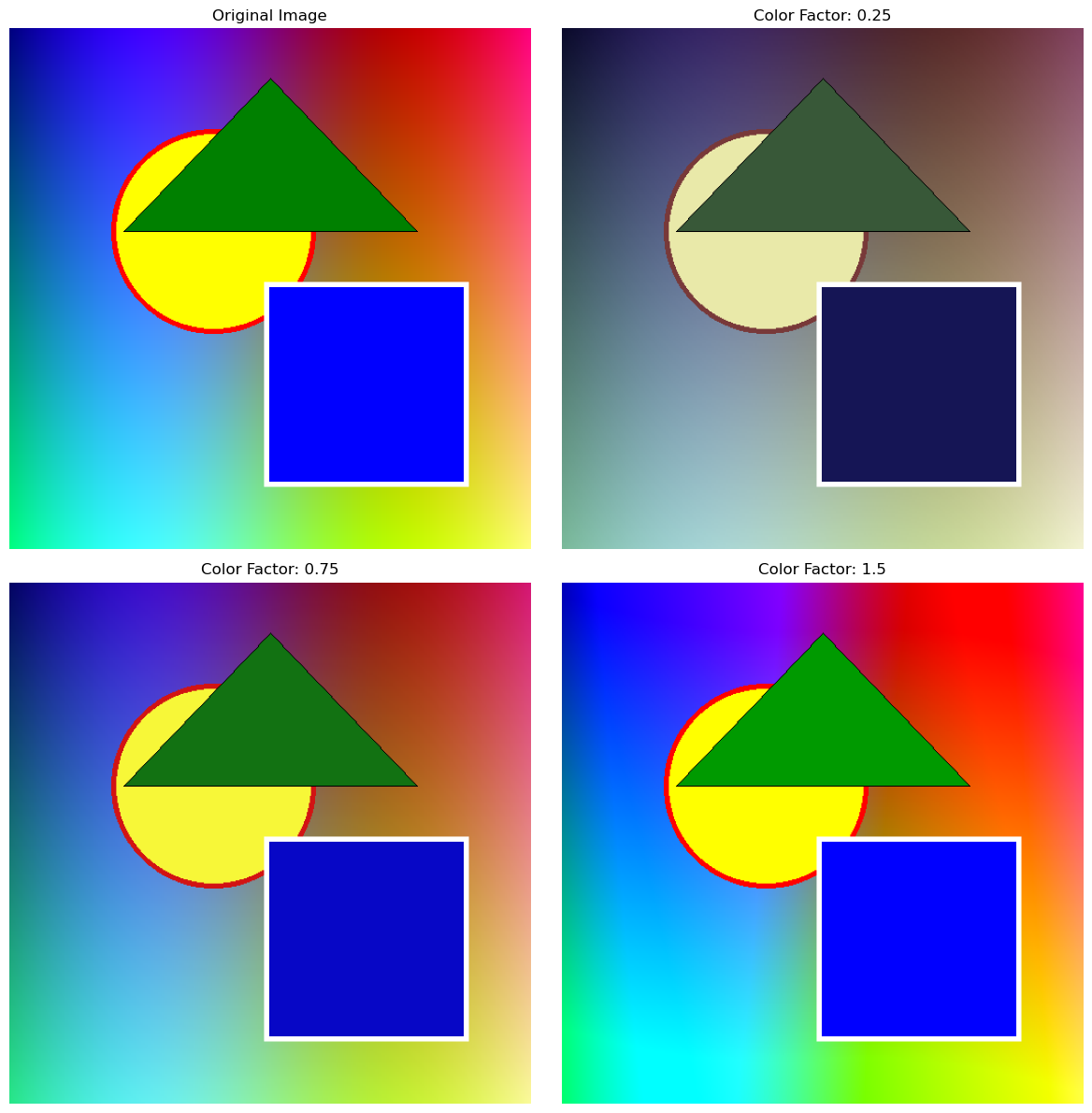
Color balance adjusts the intensity and tone of colors in the image.
Factor interpretation:
Factor = 0: produces a black and white image
Factor < 1: reduces color saturation
Factor = 1: no change
Factor > 1: increases color saturation
# Demonstrate color enhancement
color_factors = [0.25, 0.75, 1.5]
color_images = [ImageEnhance.Color(image).enhance(factor) for factor in color_factors]

# Visualize
fig, axes = plt.subplots(2, 2, figsize=(12, 12))

axes[0, 0].imshow(image)
axes[0, 0].set_title('Original Image')
axes[0, 0].axis('off')

for i, (color_image, factor) in enumerate(zip(color_images, color_factors)):
    row = (i + 1) // 2
    col = (i + 1) % 2
    axes[row, col].imshow(color_image)
    axes[row, col].set_title(f'Color Factor: {factor}')
    axes[row, col].axis('off')

plt.tight_layout()
plt.show()
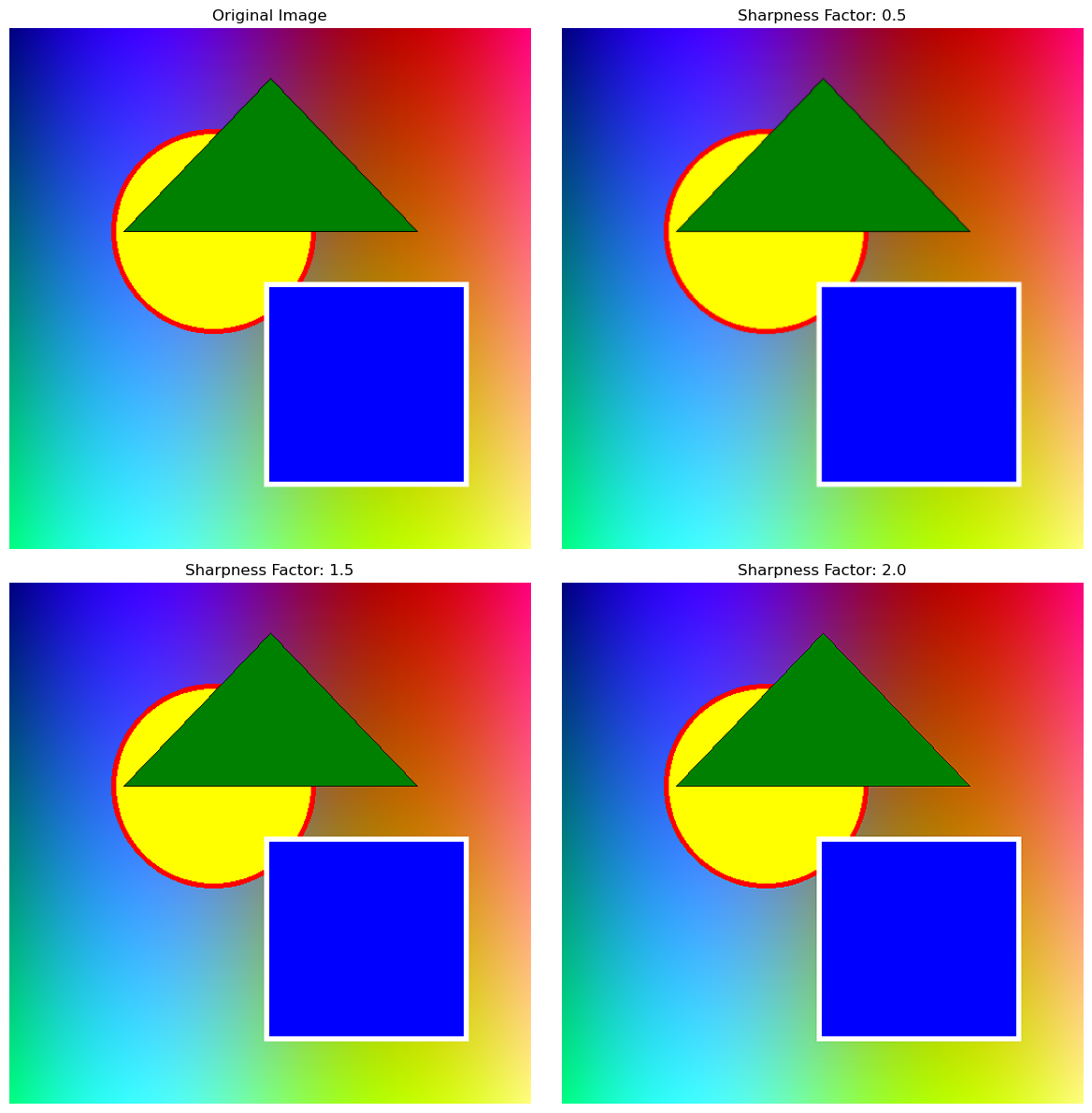
Sharpness Enhancement#
Sharpness enhancement increases the clarity and definition of edges and fine details.
Factor interpretation:
Factor > 1: increases sharpness (emphasizes edges)
Factor = 1: no change
Factor < 1: decreases sharpness (blurs the image)
# Demonstrate sharpness enhancement
sharp_factors = [0.5, 1.5, 2.0]
sharp_images = [ImageEnhance.Sharpness(image).enhance(factor) for factor in sharp_factors]

# Visualize
fig, axes = plt.subplots(2, 2, figsize=(12, 12))

axes[0, 0].imshow(image)
axes[0, 0].set_title('Original Image')
axes[0, 0].axis('off')

for i, (sharp_image, factor) in enumerate(zip(sharp_images, sharp_factors)):
    row = (i + 1) // 2
    col = (i + 1) % 2
    axes[row, col].imshow(sharp_image)
    axes[row, col].set_title(f'Sharpness Factor: {factor}')
    axes[row, col].axis('off')

plt.tight_layout()
plt.show()
Optional: Interactive Enhancements with ipywidgets#
This section demonstrates an interactive tool to experiment with multiple enhancement parameters simultaneously. This requires the ipywidgets library to be installed.
Note: This is an optional exploration tool for visual experimentation.
import ipywidgets as widgets
from IPython.display import display

def interactive_enhancements(brightness, contrast, color, sharpness):
    """Apply all enhancements and display the result."""
    # Start with the original image
    enhanced_image = image

    # Apply enhancements sequentially
    enhanced_image = ImageEnhance.Brightness(enhanced_image).enhance(brightness)
    enhanced_image = ImageEnhance.Contrast(enhanced_image).enhance(contrast)
    enhanced_image = ImageEnhance.Color(enhanced_image).enhance(color)
    enhanced_image = ImageEnhance.Sharpness(enhanced_image).enhance(sharpness)

    # Display the result
    plt.figure(figsize=(8, 8))
    plt.imshow(enhanced_image)
    plt.axis('off')
    plt.title(f'B:{brightness:.1f} C:{contrast:.1f} Col:{color:.1f} S:{sharpness:.1f}')
    plt.show()

# Create sliders for each enhancement
brightness_slider = widgets.FloatSlider(
    min=0.1, max=2.0, step=0.1, value=1.0, description='Brightness:'
)
contrast_slider = widgets.FloatSlider(
    min=0.1, max=2.0, step=0.1, value=1.0, description='Contrast:'
)
color_slider = widgets.FloatSlider(
    min=0.1, max=2.0, step=0.1, value=1.0, description='Color:'
)
sharpness_slider = widgets.FloatSlider(
    min=0.1, max=2.0, step=0.1, value=1.0, description='Sharpness:'
)

# Create interactive interface
widgets.interactive(
    interactive_enhancements,
    brightness=brightness_slider,
    contrast=contrast_slider,
    color=color_slider,
    sharpness=sharpness_slider
)
Recap#
This notebook covered the fundamentals of image manipulation using Pillow:
Image Representation:
Pillow uses
Imageobjects with attributes likesize,mode, andformatRGB images contain three color channels (Red, Green, Blue) with values 0-255
Grayscale images use a single channel representing luminance
Images can be converted to/from NumPy arrays for numerical operations
Basic Transformations:
Rotating, flipping, and transposing for orientation changes
Cropping to extract regions of interest
Resizing with different quality filters (NEAREST, BILINEAR, BICUBIC, LANCZOS)
Image Enhancements:
Brightness: adjusts overall light intensity
Contrast: controls the difference between light and dark areas
Color: modifies color saturation
Sharpness: enhances edge definition and detail
These operations are commonly used for image preprocessing, data augmentation, and basic image correction in computer vision applications.